Markdown
Markdown is a simple markup language to add formatting to plain text.
For example typing this:
Here is a *simple* example of **Markdown** with a list of pets:

- Butternut is a ***dog***.
- Marshmallow is a ***cat***.

And a numbered list:

1. The first has a link to [Zengobi](https://zengobi.com).
1. The second has `monospace` and ~~strikethrough~~.
Will turn into this when you’re done editing:
Here is a simple example of Markdown. And here is a list:
- Butternut is a dog.
- Marshmallow is a cat.
And a numbered list:
- The first has a link to Zengobi.
- The second has
monospaceandstrikethrough.
Curio’s text figures support a number of Markdown syntax elements. While editing the text figure you will see the raw Markdown syntax, but when you finish editing Curio will render it on the fly.
Using Markdown
Detection
The first time you edit a text figure and use Markdown syntax Curio will ask if automatic Markdown detection should be enabled. You can also control whether Markdown is enabled or disabled for a specific figure, regardless of the global default.
If you never or rarely use Markdown then perhaps disable it by default, and only enable it for specific figures when you need it. On the other hand, if you’re a fan of Markdown, enable automatic detection and enjoy using Markdown in any figure.
- Global Default
Use the Format > Default Figure Settings > Detect Markdown menu item to toggle the global setting. This setting is applied to a figure when you first create it, so existing figures won’t suddenly change if you change the global. - Per Figure
If a text figure is selected or being edited, you can use the Markdown button on the inspector bar or text inspector to explictly enable or disable Markdown rendering just for this figure.
Mixing Markdown and Rich Text
Within a text figure you can mix Markdown syntax with normal attributed text. The latter comes in handy when you’d like to use attributes not supported by Markdown, such as text and background coloring.
Importing Content From AI Chat Services
AI chat services such as ChatGPT, Claude, and Gemini are especially useful for generating organized content that Curio can turn into native figures.
For an outline, list, or table, ask the service to return Markdown and copy its response. In Curio, choose Edit > Paste As Markdown, then choose List, Mind Map, Table, or another available format. This creates editable Curio figures instead of pasting the response as plain text.
Images generated by an AI service can usually be dragged directly from the response into an idea space to create an image figure.
Basic Syntax
Curio supports on-the-fly rendering of the following basic Markdown syntax:
| Attribute | Example | Markdown Rendering Enabled |
|---|---|---|
| Italic | *italic* or _italic_ | italic or italic |
| Bold | **bold** | bold |
| Bold and Italic | ***bold and italic*** or ___bold and italic___ | bold and italic |
| Underline | __underline__ | underline |
| Strikethrough | ~~strikethrough~~ | |
| Highlight | ==highlight== or ^^highlight^^ or ::highlight:: | highlight |
| Inline Code | `printf()` | printf() |
| Inline Links | Visit [Zengobi](https://www.zengobi.com) | Visit Zengobi |
| Images |  |  |
| Wikilinks | Read [[Overview]] Read [[Overview|Alt Title]] |
Read Overview Read Alt Title |
| Headings | # heading 1 ## heading 2 ### heading 3 #### heading 4 ##### heading 5 ###### heading 6 |
heading 1 heading 2 heading 3 heading 4 heading 5 heading 6 |
Intra-word Italics
For intra-word italics, like if you wanted to say magnificent, use the asterisk, not the underscore. Underscores for italics can only be used at the start and end of a word. This allows you to enter text with intra-word underscores like Steven_Paul_Jobs without rendering any italics.
Escaping Markdown
The backslash character can be used to escape text so it won’t be interpreted as Markdown syntax. So, for example, \*this will not be in italics\*.
Styles
If you have Curio Professional you can customize Curio’s Markdown rendering with master Markdown styles.
Headings
Markdown supports six heading levels, from level 1 (#) through level 6 (######). Use fewer hash marks for higher-level headings and more hash marks for lower-level subheadings.
# Heading 1
## Heading 2
### Heading 3
#### Heading 4
##### Heading 5
###### Heading 6
When rendering Markdown headings, Curio trims extra blank lines before and after heading paragraphs to be more consistent with most Markdown renderers, then dynamically computes heading paragraph spacing so the result still has comfortable visual rhythm. You can turn this off if you’d like to keep the blank lines. Note that Obsidian generally keeps blank lines before and after headings.
Links
The Markdown link syntax of the form [title](link) is supported within Curio.
The Smart Paste URL feature make it easy to create links. Simply paste a copied link on selected text to turn it into a Markdown link of the form [selection](link).
Given that pasting on selected text could also create a rich text clickable link, when does paste create a rich text link vs a Markdown link?
- If a text figure has Markdown explicily disabled (via the inspector bar) then a rich text link is created, and if explicity enabled then it will create a Markdown link.
- If Markdown hasn’t been explicity enabled or disabled and Detect Markdown is enabled (via the Format > Default Figure Settings menu) then it’s still unclear if you want paste to create a rich text link or a Markdown link. This is solved with the Prefer Markdown Formatting option under that same menu. Enabling this option means Curio should assume you prefer Markdown formatting so a Markdown link will be created.
Link Limitations
Curio’s link parsing cannot handle URL’s with parentheses, as those are nested within Markdown’s link syntax parentheses. This is a complex problem to resolve as inner parens may not be paired - that is, you could have an uneven number of left vs. right parens - and regex parsers can’t handle this very easily.
An easy workaround is to escape the left and right parenthesis with %28 and %29, respectively.
Thus instead of this Markdown:
[Set](https://en.wikipedia.org/wiki/Set_(mathematics))
You would do this instead:
[Set](https://en.wikipedia.org/wiki/Set_%28mathematics%29)
Emoji
While editing a Markdown text figure, you can type in over 2,700 Markdown emoji cheat codes, such as :laughing: and :heart_eyes_cat:, and they’ll be converted into the appropriate emoji character, like 😆 and 😻 when you finish editing.
Curio uses the standard gemoji code set, the same one used by GitHub and many other apps, so codes you’re used to elsewhere generally work here too.
Codes are matched case insensitively, so :Smile: and :smile: both work.
Curio also recognizes the alternative spellings that some other Markdown editors use.
For example the blue circle 🔵 is :large_blue_circle: in the standard set, but many editors call it :blue_circle: — Curio accepts both.
This matters most for figures with sync files that you also edit in another app, since Markdown written there will still render when it comes back into Curio.
Note
If you’d rather Curio only recognized the standard codes, so that what you type is as portable as possible to other editors, you can turn the alternatives off.
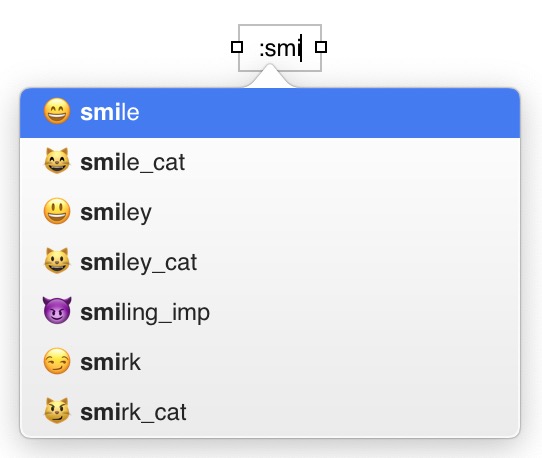
Helpfully Curio will show you an autocomplete popover as you start typing.
For example type :s and the popover will show all the Markdown emojis codes that start with s, type an m after, so you’ve typed :sm, and you’ll see options like smile and smiley_cat.
Use the arrow keys to choose one and press Return and the word is autocompleted for you and the ending : appended if necessary.
Your Own Emoji Codes
You can add your own cheat codes, or change what a built-in code inserts.
Create a plain text file named Emoji.txt inside your personal repository folder — normally ~/Library/Application Support/Curio/Version XX/Repository — and add one entry per line:
approved=✅
blocked=⛔️
shipit=🚀
The code goes to the left of the = and the emoji to the right.
Codes may only contain the characters a-z, 0-9, hyphen, plus and underscore — the same characters Curio’s Markdown scanner recognizes between the two colons.
A line starting with # is a comment.
Your codes are added to the built-in list, and any code you define with the same name as a built-in one replaces it. Curio notices your edits the next time you return to a project window, so there’s no need to relaunch.
Warning
Unlike the built-in codes, the ones you invent here are known only to Curio. If a figure has a sync file you also open in another Markdown editor, your own codes won’t render there. If that matters to you, turn on Text Convert Markdown and Curio will store the actual emoji character instead of the code when you finish editing, which renders correctly everywhere.
Tip
Because an emoji can contain invisible characters like variation selectors and zero width joiners, you can add a tab after the emoji followed by anything you like as a note to yourself. Curio ignores everything after the tab.
Images
Curio supports Markdown’s image syntax like this:

When you finish editing your Markdown, the specified image references are rendered into the resulting rich text figure that appears on the idea space.
You can also specify a local file-based image reference like this:
Here is an image 
Mac App Store Restriction
Only secure https links are supported for images as insecure http links are not allowed. See Sandbox for more details.
Image Size
While there isn’t an official standard method for specifying an image’s size in Markdown, Curio supports three popular formats:
- Obsidian-style
= proportionally size the image to a 20 pixel width= proportionally size the image to a 50 pixel height= size the image to 20x50
- Marked-style
= proportionally size the image to a 20 pixel width= proportionally size the image to a 50 pixel height= size the image to 20x50
- DEVONthink/HTML-style
= proportionally size the image to a 20 pixel width= proportionally size the image to a 50 pixel height= size the image to 20x50
You may also want to check out the settings for sync/exporting of Markdown images.
Retina @2x Suffix
If an image filename ends with @2x before the extension, Curio treats it as a Retina image and renders it at 50% size by default.
For example,  with an intrinsic image size of 1000x1000 will render at 500x500.
This behavior can be toggled using Markdown Image Scale 2x Suffix.
Image Retrieval
It is important to note that a text figure’s Markdown syntax is parsed and rendered dynamically by Curio when it loads an idea space or when the text content is changed. Any referenced Markdown images are retrieved during rendering, as there are no embedded images within the text figure.
This retrieval is a synchronous action, with a 15 second timeout, as it could impact the layout of other figures on the idea space, and needs to be completed before exporting, printing, or presenting, as well. You can remove the timeout to wait indefinitely, or set a negative timeout if you don’t want it to retrieve any images.
Curio uses a standard shared URLCache configured with a 10MB memory cache and 50MB disk cache to minimize repeated downloads from the internet. For Markdown image retrieval Curio uses the default caching policy, thus paying attention to HTTP caching and expiry headers from the server, although there are other options which you can set. You can enable logging to learn more.
If you wish to statically store an embedded image into a Curio text figure, instead of dynamically retrieving it via a Markdown image URL, then it would be better to simply copy the image from a browser page or elsewhere and then paste it into text figure, permanently embedding it within the stored rich text.
Horizontal Rules
Curio supports Markdown horizontal rules via the CommonMark-standard ***, ---, or ___ syntax.
By default *** will draw a strong line, --- a regular line, and ___ a thin, dotted line.
However, the color, thickness, width percentage, dash pattern, and space before and after can be customized for each.
For example, here we have a Markdown text figure with the three types of horizontal rules:
# Horizontal Rules

Heavy (3 asterisks)
***
Regular (3 dashes)
---
Light (3 underscores)
___
The color, thickness, width percentage, dash pattern, and space before and after can be customized for each.
And here’s what it looks like we’re done editing the figure:
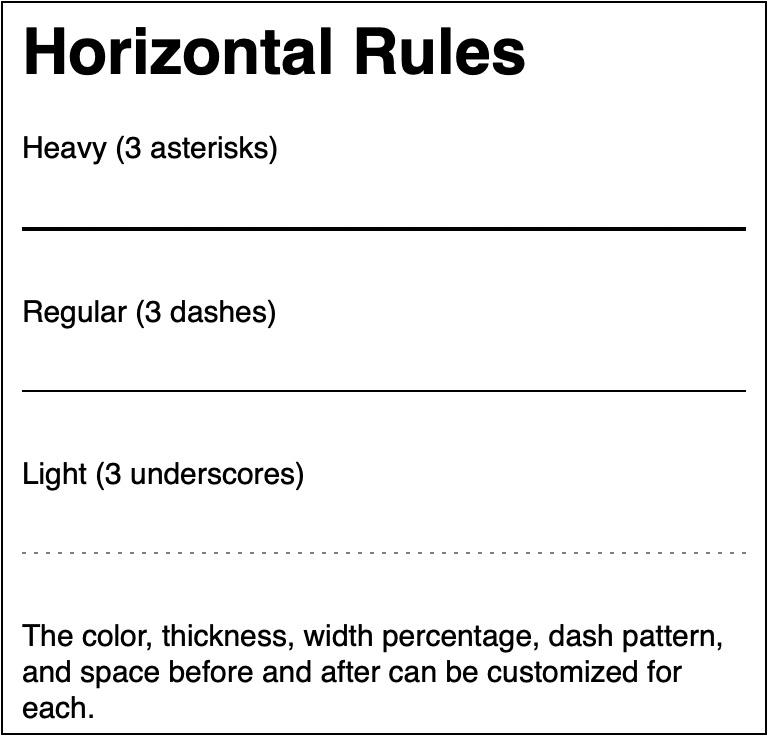
Horizontal Rule Styling
Syntax |
Color | Thickness | Width | Dash Pattern | Space Before | Space After |
|---|---|---|---|---|---|---|
*** |
#222222 | 2 | 100% | none | 30 | 30 |
--- |
#888888 | 1 | 100% | none | 30 | 30 |
___ |
#999999 | 0.5 | 100% | 2,4 | 30 | 30 |
The dash pattern follows this format: pixels on, pixels off, pixels on, pixels off, …, repeat.
So 2 would indicate 2 pixels on then 2 pixels off, repeat.
And 2,4 would indicate 2 pixels on then 4 pixels off, repeat.
If you have Curio Professional you can also customize the style of horizontal rules by using master Markdown styles.
Equations
LaTeX math equations can be entered directly into Curio’s Markdown text figures.
Block equations ($$⏎...⏎$$), inline equations (\(...\), $...$), and math code blocks (```math⏎...⏎```) are all supported.
Important
Make sure Markdown is enabled for the text figure using the Markdown button on the inspector bar to see the rendered equation.
Equation Rendering Details
Read the details on how equation rendering works in Curio and how it can be customized. Curio bundles an HTML Local folder containing MathJax’s scripts so internet access is not required.
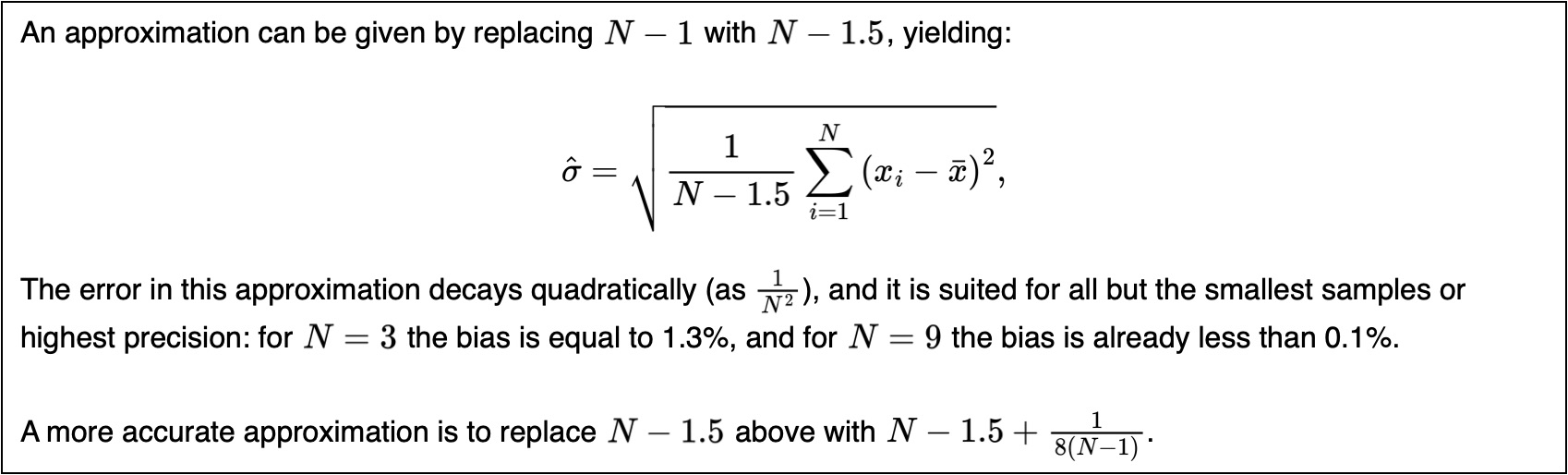
For example, here we have a Markdown text figure with block and inline equations:
An approximation can be given by replacing $N-1$ with $N-1.5$, yielding:

$$
\hat{\sigma}= \sqrt{\frac{1}{N-1.5}\sum_{i=1}^{N}\left(x_i-\bar{x}\right)^2},
$$
The error in this approximation decays quadratically (as $\tfrac{1}{N^2}$), and it is suited for all but the smallest samples or highest precision: for $N=3$ the bias is equal to 1.3%, and for $N=9$ the bias is already less than 0.1%.

A more accurate approximation is to replace $N-1.5$ above with $N-1.5+\tfrac{1}{8(N-1)}$.
And here’s what it looks like we’re done editing the figure:
Tip
The $...$ inline equation syntax will not render if you have a numeric just after the first dollar sign, because we don’t want to interpret dollar pricing as equations accidentally.
In those cases it’s best to use the more flexible \(...\) instead. For example this equation: \(1^2+2^2=5\). Just be sure to toggle on the Markdown button in the inspector bar if necessary.
Block equations are center aligned by convention but you can override the default to left or right. Likewise the default 10 pixel spacing before and 10 pixel spacing after can be changed.
Curio will automatically cache rendered math equation images to disk with the figure’s data so editing text outside the equation itself won’t cause a re-render. However, if you change any style information like the figure’s base font, master Markdown styles, or MathJax-specific settings then that would cause equations to re-render.
If you modify the Markdown figure’s text size using techniques such as the following, your equations will scale and and adjust baselines to match automatically:
- Select the figure itself and use ⌘+ or ⌘-.
- Select the figure itself and use the inspector text size control.
- The master Markdown style entry for
bodyhas a customfont-size.
FYI, for those syncing their text figures with other apps or services:
- Obsidian supports
$$⏎...⏎$$for blocks and$...$for inline. - GitHub supports
$$⏎...⏎$$for blocks,$...$for inline, and```math⏎...⏎```code blocks.
Using the Equation Editor
While you can type your LaTeX equations directly into your Markdown text, you can also use Curio’s Equation Editor, with integrated preview, to create and edit your LaTeX equations.
When you’re editing a text figure and Markdown is either enabled or Markdown autodetect is enabled the Equation Editor will automatically insert LaTeX into your Markdown.
Inserting an Equation
- Edit a Markdown text figure and position the text cursor where you would like to place the equation. If the cursor is on its own line then you’ll insert a “block” equation, else if between existing text you’ll insert an “inline” equation with automatic baseline adjustment to align itself with neighboring text.
- Choose the Insert > Equation menu item (⌃⌘E) or click the Insert toolbar button then choose Equation.
- Use the equation editor to enter your equation. A preview area below shows what your equation will look like.
- Click Insert to insert the LaTeX into your text figure. Curio will automatically prepend and append the appropriate block (
$$⏎...⏎$$) or inline ($...$) delimiters to the equation for proper rendering. - When you finish editing the figure the equations will be dynamically rendered.
Editing an Equation
When you need to edit your LaTeX equation you can do it by hand, of course, or you can use the Equation Editor:
- Edit the Markdown text figure and position the text cursor anywhere within the equation text.
- Choose the Insert > Equation menu item (⌃⌘E) or click the Insert toolbar button then choose Equation.
- Use the equation editor to edit your equation.
- Click the Update button when you finish your changes and the LaTeX Markdown will be updated.
LaTeX Resources
Online LaTeX equation editors:
Learn more about LaTeX equations:
- Writing mathematical expressions on GitHub
- Advanced LaTeX
- Equation Sheet
- LaTeX Math Symbols and Equations.com
- LaTeX Greek letters and math symbols
- LaTeX Math for Undergrads
- MIT LaTeX Primer
Equation Meta
LaTeX conviently supports a comment symbol: %.
Everytihng after a % is ignored and not rendered.
Curio uses that ability to support meta attributes tacked onto the end of your LaTeX equation.
For example, this block equation will be left aligned and scaled by 70%:
$$
x = \frac{-b \pm \sqrt{b^2 - 4ac}}{2a} % align:left; scale:0.70
$$
And this inline equation has a baseline of 2.3 points to better position itself vertically with neighboring text:
This $\sqrt{b^2-4ac}%baseline:2.3$ is an inline formula.
Multiple meta key:value pairings should be separated by semicolons. Spaces are ignored.
Meta |
Value | Example | Comment |
|---|---|---|---|
| align | left, center, right | align:left | Block equation horizontal alignment. |
| scale | number | scale:0.7 | Scales the image. |
| margin-top | number | margin-top:5 | The margin above a block equation in points. |
| margin-bottom | number | margin-bottom:5 | The margin below a block equation in points. |
| baseline | number | baseline:2 | The baseline for an inline equation. |
| baseline-adjust | number | baseline-adjust:-3.2 | An adjustment applied to the inline equation’s baseline. |
Warning
If you’re syncing your Markdown text with other editors that support equations then please note that while they should ignore LaTeX comments, they may not. For example, Obsidian ignores comments in block equations (yay!) but unfortunately doesn’t ignore them in inline equations (boo!).
Lists
Curio text figures support bulleted and numbered inline Markdown lists, like these:
#### Simple
- Flight tickets
    - Are we on Southwest this time?
- Hotel confirmation number
    - `83729293`
- Don’t forget *passports*!

#### A Mixed List
1. Pack bags
    1. Get new swimsuit
    1. Sunscreen
1. Reserve rental car
    * Ask Dan for suggestions
    * Get a convertible!
1. Put newspaper and mail on hold.
And here are the results when rendered:
Simple
- Flight tickets
- Are we on Southwest this time?
- Hotel confirmation number
83729293- Don’t forget passports!
A Mixed List
- Pack bags
- Get new swimsuit
- Sunscreen
- Reserve rental car
- Ask Dan for suggestions
- Get a convertible!
- Put newspaper and mail on hold.
Tip
Use the handy Format > Markdown > Bulleted List / Numbered List menu to convert selected lines of text (even another type of list) into a bulleted or numbered list.
List Rendering Details
Curio’s Markdown list rendering matches match popular renderers such as Obsidian and Github-Flavored Markdown apps:
- If spaces are used for indention, instead of tabs, Curio counts the number of spaces used for the first indented item it finds and uses that as the number considered a single indention. Generally most use 4 spaces as an indent but some, including ChatPT, use 2 spaces.
- Lists will be rendered with blank line gaps between list items if any Markdown list item has a blank line between them.
- Lines of text that follow a list item that don’t start with a bullet or number prefix marker are considered “continuation” lines. These are rendered with “soft returns” directly under the current list item so they are horizontally indented and aligned with its list item’s text. Any preceding whitespace is ignored for these lines.
- A list item will render its continuation lines with a blank line gap between each line if any of its continuation lines have a blank line between them.
Native List
Alternatively you can paste or import a Markdown list onto the idea space and it can be converted into a native Curio list collection containing individual text figures.
Checklists
Curio supports the Markdown extended syntax for checklists as either an inline checklist within a text figure or converted into a native Curio list collection figure.
A Markdown checklist looks like a normal bulleted list but uses [ ] and [x] to indicate unchecked and checked items, respectively.
- [ ] Checklists are fun.
- [x] A checked item.
- [ ] An unchecked item.
Inline Checklist
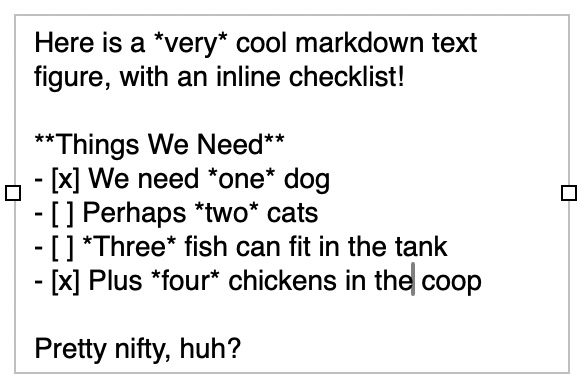
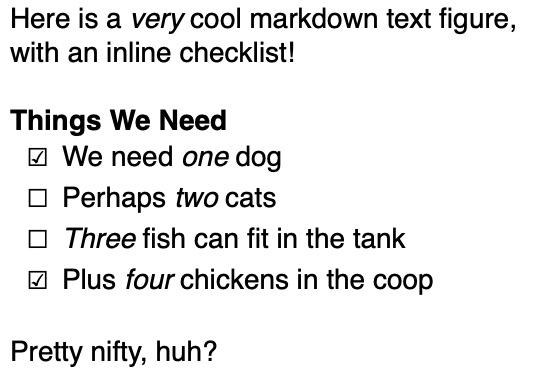
You can create a text figure which includes one or more inline checklists and Curio will render [ ] as ☐ and [x] as ☑.
You can even click to toggle the rendered checkmarks and it will change the underlying Markdown syntax.
 →
→ 
Since any text figure can include an inline checklist this means nodes in a mind map figure or cells in a table figure can include checklists as well!
Checklist Shortcuts
Instead of typing - [ ] and - [x] you can type this instead:
- Begin a new line with
xthen press spacebar and it will be replaced with- [ ](disable). - Begin a new line with
[]then press spacebar and it will be replaced with- [ ](disable). - Begin a new line with
[x]then press spacebar and it will be replaced with- [x](disable).
Tip
Use the handy Format > Markdown > Checklist menu to convert selected lines of text (even another type of list) into a checklist. There’s also a menu item and shortcut to toggle the checked state of selected lines.
Limitations
- The checklist line items aren’t treated as individual figures within Curio so can’t be tracked by the Status shelf or synced to Calendar, but they’re perfect for simple checklists mixed in with other Markdown content.
- To abide by the Markdown extended syntax, prefixes like bullets and numbering are ignored for checklists.
Inline Checklist Styling
If you have Curio Professional you can customize the style of lists by using master Markdown styles.
Native List
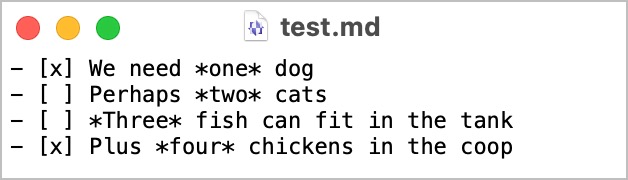
Alternatively you can paste or import a Markdown list onto the idea space and it can be converted into a native Curio list collection containing individual checked or unchecked text figures.
 →
→ 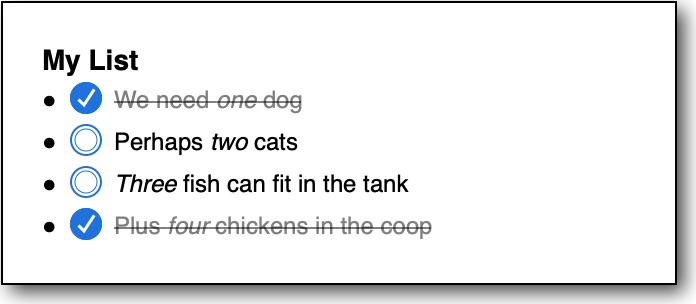
And, when exporting a Curio list collection figure as Markdown the appopriate checklist syntax will be used for checked/unchecked items within the list.
Dashed Lists
Markdown traditionally renders either * or - as a bulleted list item.
However, using the Format > Markdown > Support Dashed Lists menu item you can optionally enable or disable - for dashed lists for the current project or for all projects.
Apple Notes users in particular may like this as both Notes and Curio use the same * and - characters and ⇧⌘7 and ⇧⌘8 shortcuts to create bulleted and dashed lists.
This distinction is only visible within Curio. When exporting and rendering in a traditional Markdown viewer, dashes will render as bullets as normal.
By default, any text figures connected to an external Markdown file (either file-backed text figures or figures with sync files) will continue to render as bullets within Curio. However, you can enable dashed lists for these as well.
When support for dashed lists is toggled Curio will automatically regenerate updated previews for all idea spaces in the current project. This doesn’t happen automatically in other projects but can be forced by holding Option and choosing Help > Advanced > Regenerate All Idea Space Previews.
On a related note, normally Format > Markdown > Bulleted List uses * by default but this can be customized to one character when dashed lists are disabled and a different one when dashed lists are enabled, if you wish.
Tables
Curio supports the Markdown extended syntax for tables as either an inline table within a text figure or converted into a native Curio table collection figure.
Inline Table
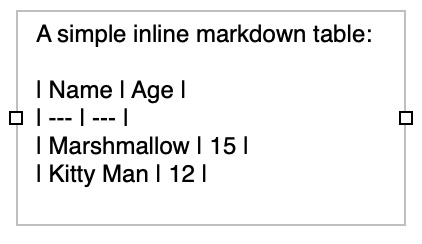
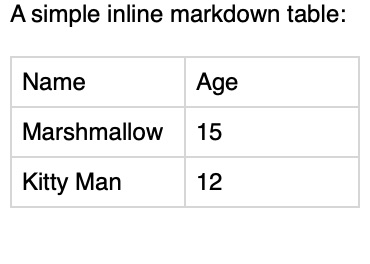
You can create a text figure which includes one or more inline tables:
 →
→ 
Markdown tables also support column alignments.
Here’s a more sophisticated example with alignments, table footer, and custom table stylings supported by Curio Professional:
An example with alignments plus a custom style:

| Counter | Code | Name | Comment | Sold | Emotion |
| ---: | :---: | :--- | :--- | :--- | :---: |
| 1 | 73630 | Smogs | **Bestseller** | 13 | :raised hands: |
| 2 | 86853 | Flogs | New release | 10 | :baby: |
| 2 | 17497 | Progs | *Fast* riser!  | 12 | :chart_with_upwards_trend: |
| 3 | 55343 | Trogs | Lackluster | 7 | :-1: |
| === |
| | | | Total | 30 | |
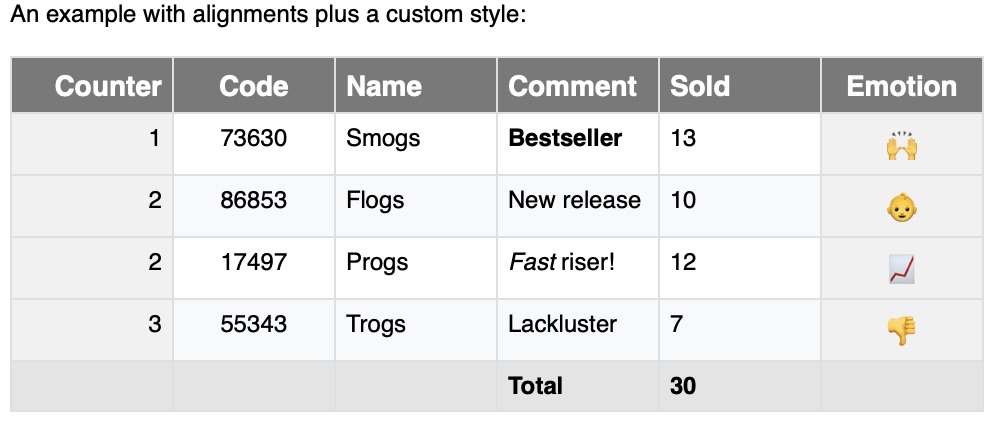
If you intend to use table-cell-footer styling, described below, so that last row stands out, then you need to indicate to Curio that it is a footer.
The table footer row must be preceded by a footer separator | === | with optional column delimiters like | == | == |.
You can also tell Curio to always consider that the last row is a footer row.
Tip
Use the handy Format > Markdown > Tabs ↔︎ Table menu to convert the selected tab-delimited lines of text into a Markdown table (where columns are indicated via tabs). The first line is assumed to be a header line. This technique is a much easier way to create Markdown tables! If already a Markdown table then this menu will convert it back into tab-delimited lines of text.
Inline Table Styling
If you have Curio Professional you can customize the style of tables by using master Markdown styles.
For instance, here is the style sheet used to style the table above:
table-cell = border-color:#d4d9dd;
table-cell-odd = cell-color:#f6f8fa
table-cell-header = cell-color:#666666; border-color:#d4d9dd; font-color:#ffffff; font-size:14; font-bold:1
table-cell-footer = cell-color:#dddddd; font-bold:1
table-cell-left = cell-color:#eeeeee
table-cell-right = cell-color:#eeeeee
Native Table
Alternatively you can paste or import a Markdown table onto the idea space and it can be converted into a native Curio table collection containing individual text figures for each cell in the Markdown table. Specified column alignments are supported.
And, when exporting a Curio table collection figure, Markdown table syntax will be generated automatically.
Table Formula
Curio Professional Markdown tables embedded in a text figure can include Excel-like structured reference formulas (more user-friendly than A1-style references). Any data cell that begins with = is treated as a formula and is evaluated before Markdown styling is applied (so operators like * and _ won’t be interpreted as Markdown).
Formulas can reference columns by name using bracket syntax:
[@Column]references the value in the same row.[Column]references all values in that column (data rows only), which is useful for aggregate functions.
Column names come from the header row. Headers can be bold/italic and still work, and if a header is blank Curio assigns a placeholder like Column1. For headers with spaces or punctuation, wrap the name in brackets, for example [@[Sales Tax]].
Specifying a footer row and therefore enabling footer row styling is supported (described above). Add a footer separator like | === | and then place formulas in the footer row to compute totals.
Supported operators:
- Operators:
+,-,*,/, parentheses. - Simple example:
=[@Price]*[@Quantity] - More complex example:
=([@Price]*[@Quantity])-([@Discount]/100*[@Price]*[@Quantity])
Supported functions:
| Function | Description | Syntax | Parameters | Example |
|---|---|---|---|---|
SUM |
Adds all numeric values in a column. | SUM(values) |
values: column reference, such as [Total] |
=SUM([Total]) |
AVERAGE |
Returns the arithmetic mean of numeric values in a column. | AVERAGE(values) |
values: column reference |
=AVERAGE([Score]) |
COUNT |
Counts numeric values in a column. | COUNT(values) |
values: column reference |
=COUNT([Quantity]) |
COUNTA |
Counts cells that contain any value, including text. | COUNTA(values) |
values: column reference |
=COUNTA([Product]) |
MIN |
Returns the smallest numeric value in a column. | MIN(values) |
values: column reference |
=MIN([Price]) |
MAX |
Returns the largest numeric value in a column. | MAX(values) |
values: column reference |
=MAX([Price]) |
MEDIAN |
Returns the middle numeric value in a column, or the average of the two middle values. | MEDIAN(values) |
values: column reference |
=MEDIAN([Score]) |
ABS |
Returns the absolute value of a number. | ABS(number) |
number: numeric value or same-row reference |
=ABS([@Change]) |
INT |
Rounds a number down to the nearest integer. | INT(number) |
number: numeric value or same-row reference |
=INT([@Total]) |
CEILING |
Rounds a number up to the nearest integer. | CEILING(number) |
number: numeric value or same-row reference |
=CEILING([@Hours]) |
FLOOR |
Rounds a number down to the nearest integer. | FLOOR(number) |
number: numeric value or same-row reference |
=FLOOR([@Hours]) |
ROUND |
Rounds a number to the nearest integer, or to a specific number of decimal places. | ROUND(number) or ROUND(number, places) |
number: numeric value or same-row reference; places: optional decimal places |
=ROUND([@Total],2) |
TEXT |
Formats a numeric result as text. | TEXT(number, "format") |
number: numeric value or formula result; format: quoted format string |
=TEXT(SUM([Total]),"$#,##0.00") |
The TEXT(value, "format") function formats a numeric result as text. Format strings use 0 and # digit placeholders, , for thousands, . for decimals, % for percent, and quoted literals. You can also provide positive;negative;zero sections separated by semicolons. Examples: TEXT(SUM([Total]),"$#,##0.00") → $319.74, TEXT([@Rate],"0.00%") → 8.00%.
You can even format constants, ex: TEXT(25,"$#,##0.00") → $25.00.
If a formula can’t be evaluated, Curio displays an error token such as #REF!, #VALUE!, #DIV/0!, #NAME?, or #CIRCULAR!.
Tip
You may also want to explore formula in native Curio tables as well!
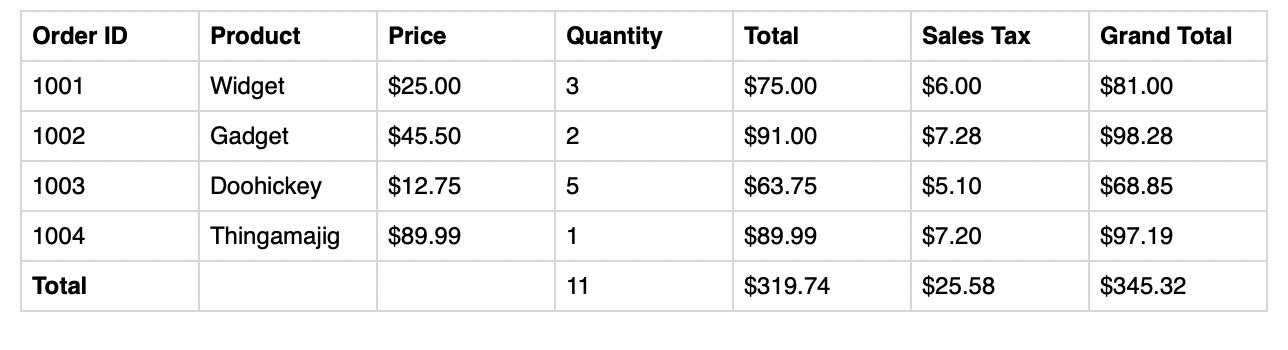
Example Markdown table with formula and formatting:
| **Order ID** | **Product**  | **Price**                 | **Quantity**      | **Total**                               | **Sales Tax**                       | **Grand Total**                             |
| ------------ | ------------ | ------------------------- | ----------------- | --------------------------------------- | ----------------------------------- | ------------------------------------------- |
| 1001         | Widget       | =TEXT(25.00,"$#,##0.00")  | 3                 | =TEXT([@Price]*[@Quantity],"$#,##0.00") | =TEXT([@Total]*0.08,"$#,##0.00")    | =TEXT([@Total]+[@[Sales Tax]],"$#,##0.00")  |
| 1002         | Gadget       | =TEXT(45.50,"$#,##0.00")  | 2                 | =TEXT([@Price]*[@Quantity],"$#,##0.00") | =TEXT([@Total]*0.08,"$#,##0.00")    | =TEXT([@Total]+[@[Sales Tax]],"$#,##0.00")  |
| 1003         | Doohickey    | =TEXT(12.75,"$#,##0.00")  | 5                 | =TEXT([@Price]*[@Quantity],"$#,##0.00") | =TEXT([@Total]*0.08,"$#,##0.00")    | =TEXT([@Total]+[@[Sales Tax]],"$#,##0.00")  |
| 1004         | Thingamajig  | =TEXT(89.99,"$#,##0.00")  | 1                 | =TEXT([@Price]*[@Quantity],"$#,##0.00") | =TEXT([@Total]*0.08,"$#,##0.00")    | =TEXT([@Total]+[@[Sales Tax]],"$#,##0.00")  |
| **Total**    |              |                           | =SUM([Quantity])  | =TEXT(SUM([Total]),"$#,##0.00")         | =TEXT(SUM([Sales Tax]),"$#,##0.00") | =TEXT(SUM([Grand Total]),"$#,##0.00")       |
And here’s the rendered result:
Block Quotes and Callouts
Markdown block quotes using the > prefix are supported.
Plus, a popular extension to block quotes, called callouts or alerts, are supported, as well.
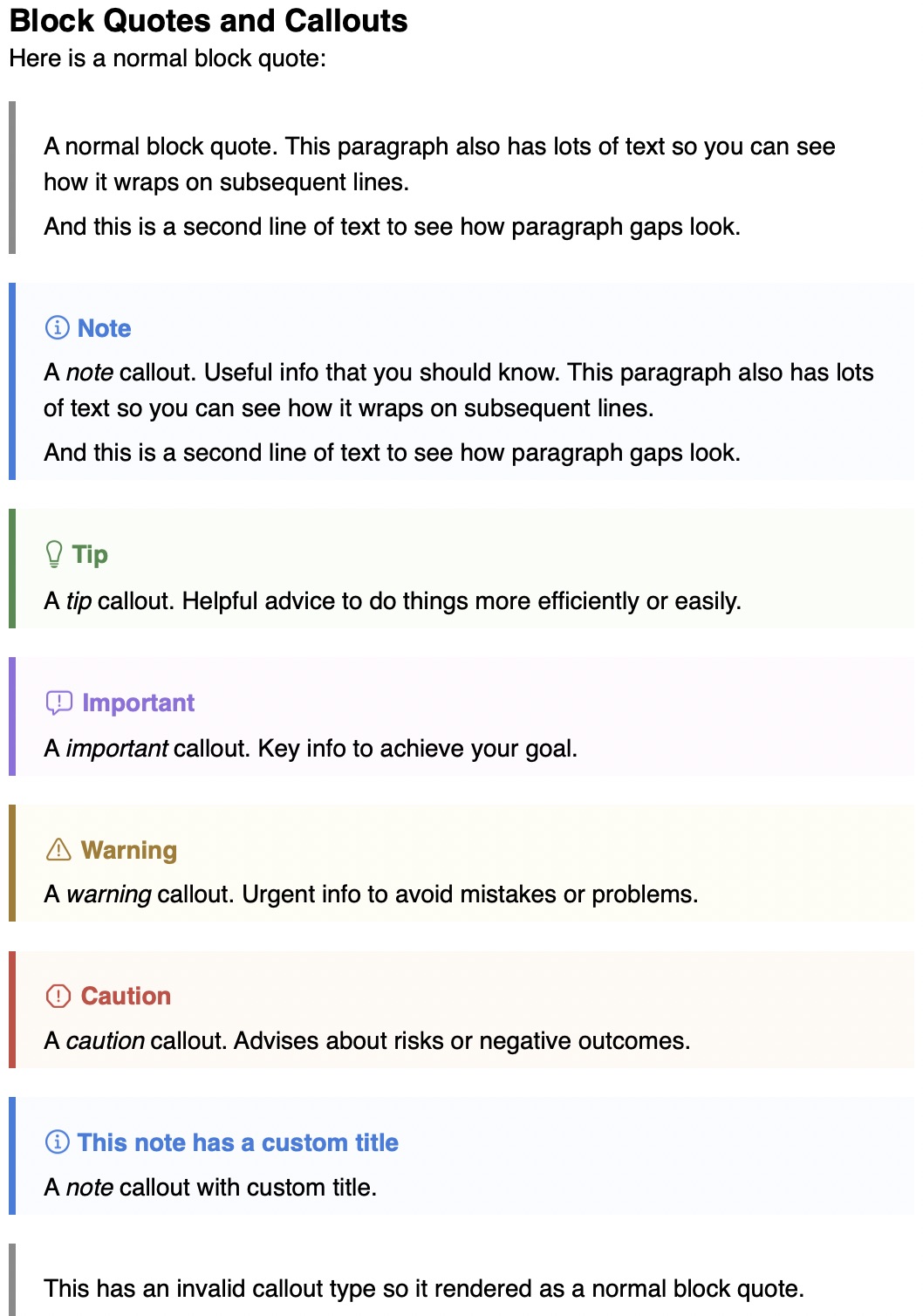
For example, here we have a Markdown text figure with the a normal block quote as well as the five types of callouts:
# Block Quotes and Callouts
Here is a normal block quote:

> A normal block quote. This paragraph also has lots of text so you can see how it wraps on subsequent lines.
> And this is a second line of text to see how paragraph gaps look.

> [!note]
> A *note* callout. Useful info that you should know. This paragraph also has lots of text so you can see how it wraps on subsequent lines.
> And this is a second line of text to see how paragraph gaps look.

> [!tip]
> A *tip* callout. Helpful advice to do things more efficiently or easily.

> [!important]
> A *important* callout. Key info to achieve your goal.

> [!warning]
> A *warning* callout. Urgent info to avoid mistakes or problems.

> [!caution]
> A *caution* callout. Advises about risks or negative outcomes.

> [!note] This note has a custom title
> A *note* callout with custom title.

> [!info]
> This has an invalid callout type so it rendered as a normal block quote.
And here’s what it looks like we’re done editing the figure:
Tip
Use the handy Format > Markdown > Block Quote menu to toggle the selected lines of text into a block quote.
Block Quote and Callout Styling
By default, normal block quotes will use the body font color, clear background color, a gray border color drawn only on the left, padding of 8 on top/bottom and 16 on left/right, at 100% of the body font’s size, a 1.2 line height multiplier, a 5 point paragraph spacing before, and will not add a blank line before and after the block quote.
The supported callout types have additional styling:
| Callout Type | Title Color | Border Color | Background Color | Border | Character Icon |
|---|---|---|---|---|---|
| note | blue | blue | light blue | left only | note |
| tip | green | green | light green | left only | tip |
| important | purple | purple | light purple | left only | important |
| warning | brown | brown | light yellow | left only | warning |
| caution | red | red | light red | left only | caution |
If you have Curio Professional you can also customize the style of block quotes and callouts by using master Markdown styles.
Code Blocks
Using construct Markdown code blocks with either backticks (```⏎...⏎```) or tildes (~~~⏎...⏎~~~). Type the following into a text figure:
```
// Hello world!
import Swift
print(“Hello world!”)
```
And when rendered the text will be shown with a monospaced font and gray background:
// Hello world!
import Swift
print("Hello world!")
Note that content within code blocks and inline code syntax is not interpreted by Curio and is simply output as-is. Thus code containing asterisks, dashes, brackets, hash marks, etc, can all be safely used without worrying about inadvertently changing font attributes or creating lists, wikilinks, tags, etc.
Tip
Use the handy Format > Markdown > Code Block menu to toggle the selected lines of text into a code block.
Code Block Styling
By default, Curio will use the Menlo font (for compatibility with older Curio releases, you may want to change to the more modern SFPro), at 100% of the body font’s size, #f1f1f1, the font color will match the surrounding text, padding of 0, no border color, no border width, and will not add a blank line before and after the code block.
If you have Curio Professional you can also customize the style of code blocks and inline code by using master Markdown styles.
Math Code Blocks
You can construct your math equations code block with either backticks (```math⏎...⏎```) or tildes (~~~math⏎...⏎~~~).
Here is the Discrete-Time Fourier transform of unit step function:

```math
u(n) \Leftrightarrow \frac{1}{{(1 - e^{ - j\omega } )}} + \sum\limits_{k =  - \infty }^\infty  {\pi \delta (\omega  + 2\pi k)}
```
Impressive!
And here’s what it looks like we’re done editing the figure:
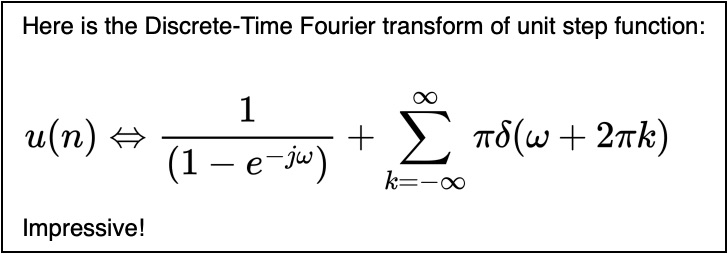
Math code blocks are left aligned by convention but you can override the default to center or right. Likewise the default 10 pixel spacing before and 10 pixel spacing after can be changed.
Curio will automatically cache rendered math code block images to disk with the figure’s data so editing text outside the code block itself won’t cause a re-render. However, if you change any style information like the figure’s base font, master Markdown styles, or MathJax-specific settings then that would cause math code blocks to re-render.
Equation Rendering Details
Read the details on how equation rendering works in Curio and how it can be customized. Curio bundles an HTML Local folder containing MathJax’s scripts so internet access is not required.
Mermaid Code Blocks
Curio Pro expands its Markdown support with the ability to render Mermaid code blocks.
You can construct your Mermaid code block with either backticks (```mermaid⏎...⏎```) or tildes (~~~mermaid⏎...⏎~~~).
Tip
Curio Pro supports Mermaid figures, Mermaid in Markdown code blocks, and Mermaid Organizer documents. If you’d like to see Mermaid in action you might check out Mermaid Live and Mermaid Chart.
Mermaid Rendering Details
Read the details to learn more about Mermaid diagrams, how Mermaid rendering works in Curio, and how it can be customized. Curio bundles an HTML Local folder containing Mermaid’s scripts so internet access is not required.
For example, here we’re editing a Markdown text figure with a Mermaid diagram code block:
Here is some **Markdown** text and a *Mermaid* diagram:

```mermaid
sequenceDiagram
    Kat->>Cooper: Hello Cooper, how are you?
    Cooper-->>Kat: Great!
    Kat-)Cooper: See you later!
```

Wow! That’s cool!
And here’s what it looks like we’re done editing the figure:
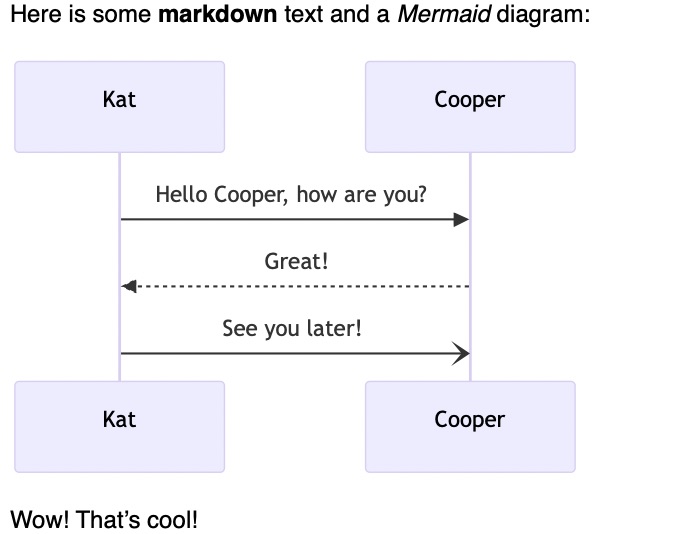
When rendering these diagrams a max width of the figure’s width is generally used although it is constrained by a default max width, which is 800, and a default min width, which is 300, which will be used if you make the figure too small (and then the result is scaled down to the figure’s width).
Curio will automatically cache rendered Mermaid code block images to disk with the figure’s data so editing text outside the code block itself won’t cause a re-render. However, if you change any style information like the figure’s base font, master Markdown styles, or Mermaid-specific settings then that would cause Mermaid code blocks to re-render.
Language Code Blocks
Curio Pro expands supports syntax coloring using the [HighlightJS](https://highlightjs.org.
You can construct your language code block with either backticks (```language⏎...⏎```) or tildes (~~~language⏎...⏎~~~).
Where language is replaced with your code’s language, or use auto and it will try to auto-detect the language.
Here is the list of all supported languages.
Code Block Rendering Details
Read the details on how code block rendering works in Curio and how it can be customized. Curio bundles an HTML Local folder containing Highlight’s scripts so internet access is not required.
For example, here is an example we’re editing a Markdown text figure with two language code blocks both colored with the default github theme:
Some Swift code:
```swift
let model = SystemLanguageModel.default
let session = LanguageModelSession(model: model)

let response = try await session.respond {
    Prompt("Explain quantum computing in one sentence")
}
```
And some HTML code:
```html
<!doctype html>
<html lang="en-US">
  <head>
    <meta charset="utf-8" />
    <meta name="viewport" content="width=device-width" />
    <title>Hello</title>
    <style>
      body {
        font-family: Helvetica, sans-serif; /* Sets the default font */
        background-color: #f4f4f4; /* Sets a light gray background color */
        margin: 20px; /* Adds a margin around the entire body */
      }
    </style>
  </head>
  <body>
    <p>Hello world.</p>
  </body>
</html>
```
And here’s what it looks like we’re done editing the figure:
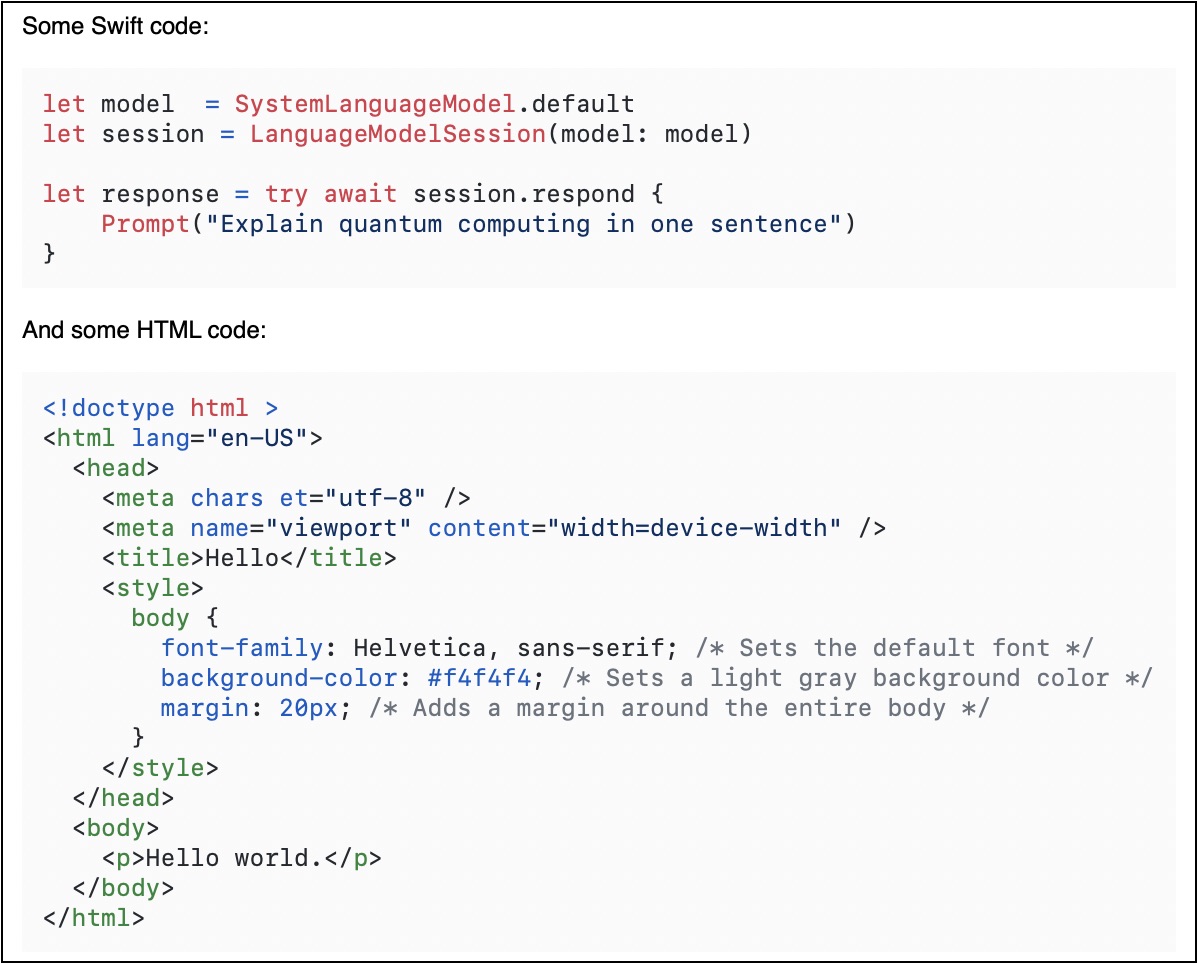
Curio will automatically cache rendered language code block rich text to disk with the figure’s data so editing text outside the code block itself won’t cause a re-render. However, if you change any style information like the figure’s base font, master Markdown styles, or Highlight-specific settings then that would cause language code blocks to re-render.
Language Code Block Styling
By default, Curio will use the SFMono font, at 100% of the body font’s size, the github theme, padding of 10, no border color, no border width, will replace white and clear theme backgrounds with #f9f9f9, and will add a blank line before and after the code block.
If you’re curious about what parameters other sites (ChatGPT, Github) and apps (Obsidian) use you might want to see these notes.
You can also use global or per-project master Markdown styles to add language code block styles and even different styles for specific languages.
YAML Front Matter
Curio’s Markdown renderer ignores any YAML front matter at the beginning of your Markdown.
Text Figure Limitations
While Curio’s text figures have impressive support for most common Markdown syntax, they are rendered as rich text, not as HTML content, so this limits Curio’s ability to support Markdown’s more advanced features.
They aren’t meant to be a replacement for a full-featured Markdown apps like Marked and MultiMarkdown Composer that render Markdown syntax into an HTML web view using more advanced parsers, apply customizable CSS style sheets, and support on-the-fly inline equation generation.
Previews Using Marked App
Using the View > Stream Selected to Marked menu item the contents of the selected figure(s), or the currently edited figure, or the currently edited Markdown document in the Organizer, is streamed in Markdown format to the Marked app for instant preview.