Search
Curio offers several ways to search your project for figures and other items.
- The Search Shelf shows your query results as a grouped outline so you can peruse or step through several items. You can even export the results in various formats.
- The Quick Find popup allows you to instantly find and jump to idea spaces and figures.
- The Organizer Filter and Smart Filters can be used to filter the items displayed in your project’s Organizer.
Query Expressions
All Curio search mechanisms support a powerful, extensive query language to perform searches.
Your queries can be as simple as:
ipad
Or as complex as:
(ipad or iphone) @SteveJ #event #2010 (start > 2010-06-25 or due < 2w) progress < 50 group:priority
Search Shelf
Press ⌘F to bring up the Search shelf, or click the search toolbar button.
Type in your search query, using the helpful keyboard button below the query field to choose meta parameters and optional query commands.
After a pause or after pressing the Return key your results appear organized below the query.
Click on a result to jump to that item in the idea space. You can also use the up and down arrow keys to step through the results jumping between the figures in their various idea spaces.
Clearing or Canceling
Click the Clear button to clear the query leaving the Search shelf up so you can type a different query if you’d like.
Alternatively, if you’d like to clear and dismiss the Search shelf you can press ⌘F or press the Escape key (assuming the query text field still has focus). The query will be cleared and the previously viewed shelf will be restored.
Note that if a query is active it will remain active even if you switch to another shelf. The Search button on the toolbar changes to a red color so you know a search is active. This way you can use the inspector or other shelf modules to examine found items without clearing the query results.
Saving and Reusing Queries
When you enter a new query into Search a small Save button becomes visible. Click it and your query is saved for easy reuse.
To reuse a saved query, click the keyboard button in the Search shelf to choose the query from the popup menu that appears.
If you select a previously saved query from that popup menu then a small Delete button appears, so you can easily delete that saved query. Or if you make changes to the query text, the button changes to Update so you can update its existing entry.
Exporting Search Results
Click the share button under the query field to copy your result as rich text, or export your search results in rich text, Markdown, or CSV format. You can also export a CSV report of all figure cross references in those results, see References for more details.
Quick Find
Press ⇧⌘F to bring up the Quick Find window, which will appear above the current Curio project window. You may also choose the Edit > Quick Find menu.
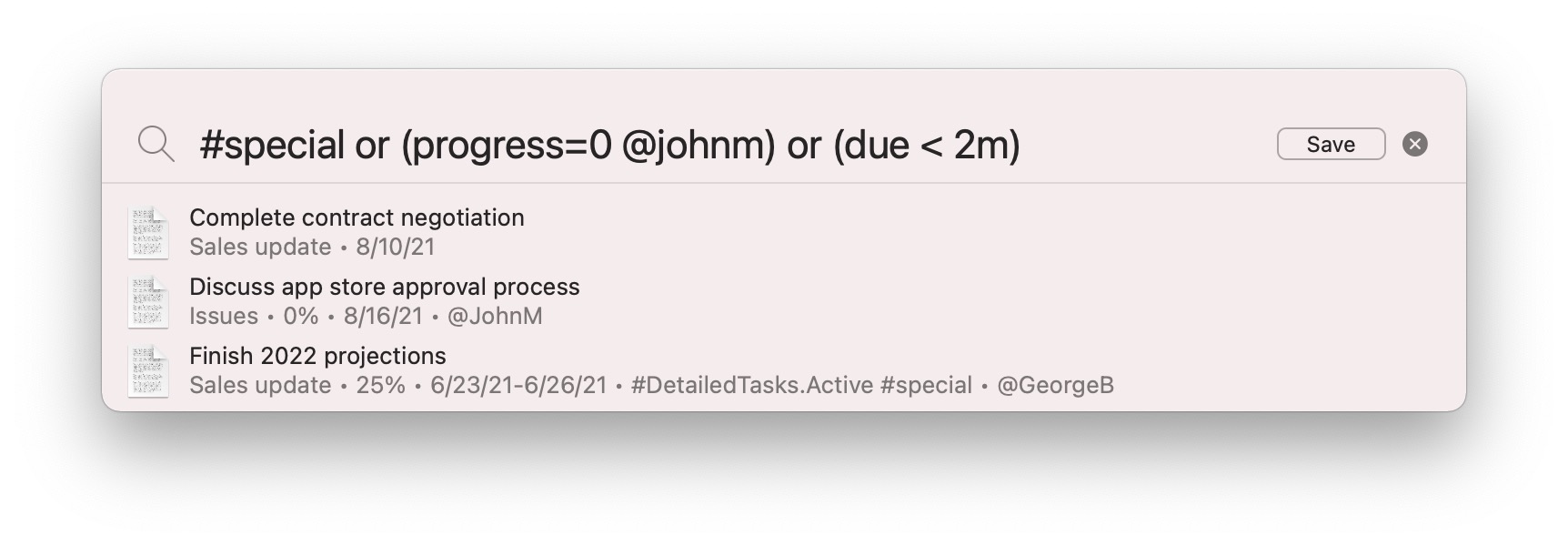
After the Quick Find window appears, type in a search query and the window expands to reveal idea spaces and/or figures that match that query.
Handy Query Pick List
Like the Search shelf there’s a helpful keyboard button next to the Quick Find query field you can use to choose meta parameters and optional query commands.
Selecting a Search Result
You can directly click on a result or use the arrow keys to highlight a result and press Return, you will then instantly jump to the selected item. If the Option key is pressed then the item destination will be opened in the secondary split view.
Canceling the Search
Alternatively you can also press Escape or click on the idea space behind the Quick Find window to dismiss Quick Find.
Refreshing the Results
By design, if you bring up Quick Find again within a launch session it will show you the last results without refreshing first. This way you can make changes to found items between subsequent returns to Quick Find to jump to the next item.
To force a refresh simply press Return to force a re-query, or change the query which will automatically refresh the results.
Sending the Query to Search
Press ⌘Return to send the Quick Find query to the Search shelf if you’d like to browse through several result items.
Saving and Reusing Queries
When you enter a new query into Quick Find a small Save button becomes visible. Click it and your query is saved for easy reuse.
To reuse a saved query, click Quick Find’s magnifying glass icon or its keyboard button to choose the query from the popup menu that appears.
If you select a previously saved query from that popup menu then a small Delete button appears, so you can easily delete that saved query. Or if you make changes to the query text, the button changes to Update so you can update its existing entry.
Organizer Filter
The Organizer Filter and Smart Filters can be used to filter the items displayed in your project’s Organizer using the same query language as the Search shelf and Quick Find. This functionality is discussed in greater detail here.
Background
Booleans
Terms are AND’ed together by default, so searching for #2021 #personal @GeorgeB means that all three terms must match.
You can use or (case-insensitive), such as #personal or @GeorgeB, or the || symbol, if you wish.
(Technically not is also supported although generally not very useful. Finding all items where not priority=3 returns a flood of results.)
Parentheses
Parentheses may be used to assist with the logic, such as #GTD/active (#personal or @GeorgeB).
You can also nest parentheses if you wish for more complex logic.
Comparison Operators
Where appropriate the following operators are allowed: >, <, =, ==, >=, =>, <=, =<, !=, <>.
And, in certain situations, specifically custom data string values, you can also use the beginswith and endswith operators such as #FullName endswith jobs.
Starting Prefix
Curio looks for special prefixes at the very start of the query which can come in handy:
-will force the result to be sorted in descending order, ex:- #active.+will force the result to be sorted in ascending order, ex:+ #active.
Note there’s a space after the prefix character before the rest of the query text.
Commands
The query can include optional commands that allow you to fine-tune the results.
Commands are in the form command:value such as sort:due.
Commands shape matches but do not create matches on their own, so a query containing only sort:title or limit:400 returns no results. To match all searchable items and then apply commands, use a criterion that excludes Curio’s non-item sentinel kind:
not kind=nothing sort:title limit:400
Sort
Example: sort:title
By default Curio ranks text search results by relevance, so stronger title, heading, and text matches appear first.
Relevance generally favors exact and prefix matches in figure or Organizer titles, then Markdown headings in text figures, then ordinary body, note, OCR, URL, and meta matches.
Fuzzy matches can contribute to relevance, but relevance ranking isn’t limited to fuzzy searches; it also applies to normal text, phrase, and regex searches unless you choose an explicit sort: option.
However, it tries to be smart about this.
For example, if your search query includes the term priority > 2 then Curio will automatically sort the results by priority, and it will do it in descending order since you’re more likely to want to see the high priority items at the top.
If you simply want to reverse the sort order you can use the special - or + starting prefix described above.
Or you can force Curio to sort by a specific meta property, even if it’s not part of the query, by using the sort command like this: sort:rating or sort:-priority.
An optional + or - value prefix before the field name can be used to force an ascending or descending sort.
Use sort:title if you want alphabetical title order instead of relevance, or sort:relevance to explicitly request relevance order.
Your sort options are:
title- the titlestart- start datedue- due datestartdue- start date unless already started (by progress > 0) then due datedone- done dateadded- date addedmodified- date last modifiedprogress- progress (percent complete)priority- priorityrating- ratingkind- kindrelevanceorrank- relevanceorganizer- Organizer order#customdatakey- sorted by the values for the specified custom data key, likesort:#price. The#prefix keeps custom data keys distinct from native sort fields, sosort:ratingsorts by Curio’s rating whilesort:#ratingsorts by a custom data key named Rating. If a#name matches both a custom data key and a tag set, the custom data key is used.#tagsetname- sorted by the order of the tags in the specified tag set, likesort:#gtdorsort:#/(the global keyword pseudo tag set) orsort:#.(project keyword tags).
Group
Example: group:priority
Note
The grouping parameter isn’t currently used by Quick Find, but can be used in the Search shelf and in query-based hierarchical smart collections such as lists and mind maps.
You can use the group command to organize your results into hierarchical groupings.
For example, group:due will organize the results into groups like Before Today, Today, Tomorrow, Within Week, etc.
And group:priority will group items into Urgent, High, Medium, etc.
Your group options are:
title- the titlestart- start datedue- due datestartdue- start date unless already started (by progress > 0) then due datedone- done dateadded- date addedmodified- date last modifiedprogress- progress (percent complete)priority- priorityrating- ratingkind- kindorganizer- Organizer order#tagsetname- grouped in the order of the tags in the specified tag set, likegroup:#gtdorgroup:#/(the global keyword pseudo tag set).none- forces no grouping; useful if you want to override automatic grouping normally applied to query-based hierarchical smart collections such as lists and mind maps.
Scope
Example: scope:section
By default the Quick Find and Search shelf search the entire project, while the Organizer filter searches the current section.
However, you can modify the scope if you wish using the scope command like this: scope:ideaspace or scope:s/.
Your scope options are:
projector/- the entire projectsectionors- the current sectionsection/ors/- the current section and any child sectionsideaspaceori- the current idea spaceideaspace/ori/- the current idea space and any child idea spacesjournal- the Journal sectionarchive- the Archive sectiontrash- the Trash section
Note
By design, searching the entire project does not include the Archive or Trash sections.
Limit
Example: limit:10
If you would like to restrict the number of returned items specify a limit value like limit:10.
For Quick Find, the default is unlimited which is the same as specifying limit:0.
For query-based smart collections there is a safety limit of 100, so you don’t have a collection explode with hundreds or thousands of items, but you can override this for a specific query using the limit command, or it can be permanently overridden.
Fuzzy
Example: fuzzy:off orgcon
Curio enables conservative title fuzzy matching by default, the same as specifying fuzzy:title.
This means a term like orgcon can find a title like OrganizerController because those letters appear in order in the title.
All letters must appear within one alphanumeric word; fuzzy matching does not combine letters across spaces or punctuation such as URL separators.
Your fuzzy options are:
title- the default, allows title-like fuzzy matches and relevance scoring for text terms with four or more characters.content- includes the title behavior and also adds conservative body-like fuzzy scoring for accepted candidates. This does not add body-only fuzzy candidates by itself.offornone- disables implicit fuzzy matching so plain text terms use strict contains matching again.
You can also prefix a single term with ~ to make it an explicit title fuzzy search, such as ~orgcon.
Fields
Example: fields:note
By default, text terms in your query match against all searchable content for an item: title, body text, note, OCR’d image text, and any associated URL. Use the fields command to restrict text terms to a specific field.
note- only the note field is searched for text matches.identifier- only the figure or idea space identifier is searched for text matches.
So works fields:note finds items with works in their note, ignoring works appearing in titles, body text, URLs, or OCR text.
Similarly, inner fields:identifier finds figures or idea spaces whose identifier contains inner.
The restriction applies to every text-style term in the query — plain contains matches, quoted phrases, regular expressions (/…), and explicit fuzzy terms (~…) — so you can combine the full query grammar with a narrower field scope. Tag, resource, reference, date, rating, priority, and other non-text terms are unaffected.
Note that synced figure instances (proxy figures) don’t store their own note text or identifiers, so they’re excluded from note- and identifier-scoped results.
Include
Example: include:nocheckbox
Normally Curio excludes certain types of result items when they wouldn’t make sense to include in the results, but you can override this.
Important
The include command must be specified at or near the front of the query.
instances- instances of synced figures are generally not included in the results, only the original figures, unless you specifyinclude:instances.nocheckbox- when searching for progress (aka percent complete) such asprogress=0orprogress<50then because that could include figures with a 0% progress, which is the default for all figures, then Curio only searches those that have a visible checkbox. However, you caninclude:nocheckboxand all figures will be included, so you will want to construct query logic that includes another query element such as a required tag or resource to narrow the results.queryitems- query-backed collections such as the Status shelf and smart Kanban boards fill themselves with copies of the figures their query matches. Those copies (and the idea space links they create for matched Organizer items) are normally excluded from results so a search returns each original figure once rather than its reflections scattered across boards. Specifyinclude:queryitemsto include them.
If you want to include multiple types then use | to separate them: include:instances|nocheckbox|queryitems
Query Terms
Text
Text queries include case-insensitive contains searches. This means searching for mac will match “macintosh” and “iMac” and “stomachache” as they all contain “mac”.
For terms with four or more characters, Curio also performs conservative title-style fuzzy matching by default.
For example, orgcon can match OrganizerController because o, r, g, c, o, and n appear in order in the title.
If you want strict text contains behavior, add fuzzy:off to the query.
What Text is Searched?
With figures, the figure’s title or text content is included in the search, as well as any meta note text, image OCR text, and the URL path if an URL is associated with the figure. Note that asset document contents are not included in a plain search — to search within the contents of documents and PDFs, use the backtick content search. If a text figure contains Markdown headings, heading matches are ranked above ordinary body text matches, with higher-level headings ranked more strongly.
You can narrow text terms to a specific field — such as searching only notes — using the Fields command.
With Organizer items, such as idea spaces or documents dragged into the Organizer, the item title and any note text is included. The contents of Organizer documents are not included in a plain search — use the backtick content search to search within them.
Phrases
You can search for multi-word phrases by using double-quotes, such as "MacBook Pro".
Regular Expressions
You can also use case-insensitive regular expressions (regex) in your text queries, thanks to a helpful / prefix which tell Curio you’re entering regex.
Curio will auto-remove the slash from the term before performing the query.
For example, searching for /\bmac will match words the start with “mac” such as “macintosh” but not “iMac” or “stomachache”.
Another example, searching for /\bping[0-7] will find all figures that contains the word that starts with “ping” followed by a numeric between 0 and 7.
Thus it will match “ping1” and “ping535” but not “ping8” or “shopping2”.
Resources for regex include Regex Tutorial, Using ICU Regular Expressions, and RegEx101.
As a final example, say you type /steve.*jobs as your query.
It will match the text “Steve Jobs”, “Steve P. Jobs”, “Steve Paul Jobs”, and “Steven Paul Jobs”.
Limitation
Entered regex can’t include a space.
Technical
Internally Curio uses your query to construct a formatted expression which it then passes to NSPredicate to actually perform the query.
NSPredicate’s MATCHES expression term is used to handle the regex evaluation so Curio is limited to its regex capabilities.
Text Within Asset Contents
Example: zengobi curio
Specify text within backticks, like `find me` and Curio will use two mechanisms to find that text within your project’s assets:
- First, Curio searches the text it has extracted from documents embedded within your project. Curio natively extracts searchable text from these file types:
- PDF documents that contain a text layer (see the note below about scanned PDFs).
- Plain text and related formats —
.txt, Markdown, source code,.xml,.json,.yaml,.csv/.tsv,.ics,.vcf,.srt/.vtt,.tex,.log, and more. - Rich text —
.rtfand.rtfd. - Word processing — Microsoft Word (
.docx,.doc) and OpenDocument (.odt). - Email —
.emland.emlx. - Images — any text within an image is recognized using OCR (optical character recognition).
- Then Spotlight will be used to search your project’s documents that are located outside the project’s file package (since it can’t look within the package):
- All aliased asset documents that exist outside the project.
- All assets if your project’s library is located in an external asset library folder.
Spotlight can index additional document types thanks to its extensible plugin architecture, but it can only see files that live outside Curio’s .curio project package. For everything embedded inside your project, Curio’s own text extraction (above) covers the most common document types quickly and reliably.
Note if your query text is multiple words then an embedded asset matches when all of those words are found somewhere within its contents.
Scanned (image-only) PDFs
A PDF that is nothing but scanned page images has no underlying text layer, so there is no text for Curio to extract and its contents won’t be found by search. PDFs that contain real text — the vast majority — are fully searchable.
Legacy SearchKit indexing
Earlier versions of Curio relied on Apple’s older SearchKit system to index embedded documents. That is now off by default in favor of the native extraction described above, but it can be re-enabled via the Use SearchKit advanced setting if you need its broader (though less reliable) format coverage.
Tags
Example: #cool or #gtd/done
Prefix any tags with a #. Note that all tags and tag sets are matched case-insensitively, with spaces and emoji ignored.
- Tags nested within a tag set will need the full tag path specified. For example, you could search for
#detailedTasks/onholdto match a figure or idea space associated with a tag named On Hold within the Detailed Tasks tag set. - You can also simply search for
#onholdor#specialand it will find all items with that tag, either as a standalone keyword tag or as a tag within a tag set. - You can search for tag set names, like
#gtd/(note the/suffix), which will find all items associated with any tag in that tag set. As a shortcut, if the entered tag set name doesn’t coincidentally exist as a tag name you can simply enter#gtdif you wish.
Quick Find, Search, and the List, Mind Map, Stack, and Kanban query fields support autocomplete for tags and tag set names. For example, typing #vacatio offers #vacation/ along with individual tags such as #vacation/london and #vacation/paris. Choose the tag set with its trailing slash to find items associated with any tag in that set. Fields used to assign tags, such as the tag inspector and Status Bar, offer only individual tags.
Items With Any Tag
You can also find all items that have any tag with the * wildcard by searching for #*.
Pseudo Tags
Curio can, on the fly, associate one or more pseudo tags with your figures and Organizer items to provide additional searching possibilities.
Figures
#meta/notedif a figure item has an associated note.#meta/ratedif a figure has a set rating.#meta/prioritizedif a figure has a set priority.#meta/taggedif a figure item has an associated tag, including inline tags.#meta/customdataif a figure item has associated custom data.#meta/actionif a figure item has a set action.#meta/highlightedif a figure’s text contains highlighted text. This includes rich text highlights and, in the running app, cached rendered Markdown highlights such as==highlight==,^^highlight^^, or::highlight::.#meta/uncheckedif the figure’s visible checkbox is unchecked with no progress made (progress = 0).#meta/checkedif the figure’s visible checkbox is checked and therefore 100% done (progress = 100).#meta/notcheckedif figure’s visible checkbox is not checked yet (progress < 100).#meta/syncfileif the figure has an associated sync file.#meta/originalif the figure has synced figure instances of a figure.
Organizer items
#meta/notedif an Organizer item has an associated note.#meta/taggedif an Organizer item has an associated tag.#meta/labeledif an Organizer item is labeled.#meta/pinnedif an Organizer item is pinned.
Note that command-line searches using curio query --project don’t have access to the running app’s rendered Markdown cache, so #meta/highlighted may only find stored rich text highlights in that mode.
Organizer Label Tags
If you assign an Organizer label to an idea space then a pseudo tag is associated with the item for searching.
For example, assigning Needs Work to an idea space will automatically associate the #Label/NeedsWork pseudo tag to the idea space so you can now query for those items.
Custom Data
Example: #country = us
If you’ve created custom figure data, such as “Price” and “First Name”, then you can build queries like #price > 30 and #firstname=george.
Note the custom data field key has to begin with a #, with spaces removed, case-insensitive.
With text values, the query is case-insensitive.
If you have a figure with a custom value of “George” then #firstname=george or #firstname beginswith geo will find it.
Quick Find and Search both support autocomplete while typing a custom data key so you can easily find and choose one from the popup that appears.
Resources
Example: @george
Prefix any resources with a @.
The full resource name must be specified, spaces removed, case-insensitive. For example, you could search for @georgeBrowning to match a figure associated with a resource named George Browning.
Quick Find and Search both support autocomplete while typing a resource so you can easily find and choose one from the popup that appears.
Items With Any Resource
You can also find all items that have any resource with the * wildcard by searching for @*.
Reference Types
Items Which Have References of Type
Find any items that have references of the given type.
Example: ^source
For instance, if Figure A has a figure NYTimesExtract as a Source reference then searching for ^source would return Figure A.
Prefix any reference types with a ^.
The full reference type name must be specified, spaces removed, case-insensitive.
For example, you could search for ^rebuttal or ^primaryWitness to match a figure that has a Rebuttal or Primary Witness reference association.
Quick Find and Search both support autocomplete while typing a reference type so you can easily find and choose one from the popup that appears.
Items Which Have References of Any Type
You can also find all items that have any references with the * wildcard by searching for ^*.
Items Which Are References of Type
You can also find items that are references of the given type.
Example: =^source
Note the use of the = prefix to indicate you’re looking for items that are used as that reference type.
For instance, if Figure A has a figure NYTimesExtract as a Source reference then searching for =^source would return NYTimesExtract.
Items Which Are References of Any Type
And you can find items that are references of any type.
Example: =^*
This would return all items that are themselves any type of reference.
Rating
Example: rating = 5
Query for ratings, such as rating >= 3 to find all figures with 3 or more stars.
Priority
Example: priority < 3
Query for priority, such as priority = 5 to find all figures with an urgent priority.
The values are as follows: very low (1), low (2), medium (3), high (4), or urgent (5) priority.
Progress
Example: progress = 0
You can query for figure progress (aka percent complete), such as progress < 100.
Note that only figures that have a visible checkbox are included when the query could include results where progress is 0 because that’s the default state for all figures in Curio.
If you want to include items with no visible checkbox then start your query with include:nocheckbox and be sure to include some other query parameter which will filter out regular figures.
For example, perhaps a tag like #gtd/ or a resource like @george.
Dates
Example: due < 2w
Curio supports several different date fields: start, due, done, added, modified.
Date values can be entered in standard YYYY-MM-DD format such as due=2021-12-25 or start>2021-01-01.
You can also pass numeric values and Curio will compute the date for you:
start < 2orstart < 2dreturns all items that start within the next 2 days.modified > -2wreturns all items modified in the past 2 weeks.due < 3mreturns items due within the next 3 months.start < 1yreturns items that start within the next year.
Project Milestones
You can also pass a project milestone as long as it’s entered without spaces.
For example, if you have a milestone of Beta 1 then you can find all figures modified after that milestone with modified > beta1.
Kind
Example: kind = mindmap
Query for asset or figure kind such as kind = image to find all images or kind = url to find all URLs.
The not equals (!=) operator is also handy so you can search for kind != ideaspace for example.
Potential values include figure types such as:
text,url,image,docordocument,video,audio,webarchive,videorecording,audiorecording,bookmark,ideaspacelink,folder,list,mindmap,table,indexcard,stack,pinboard,album.- You can use
figurefor any type of figure.
As well as Organizer types such as:
ideaspace,odocorodocument,ofolder,oalias,journal.- You can use
organizerfor any type of Organizer item.
File Extension
Example: ext = swift
Query for asset figure file extensions, such as ext=pdf to find all PDF asset figures.
Automatic Substitutions
Curio performs a number of automatic substitutions to allow more readable expressions.
| Type This | Maps to This | Allowing |
|---|---|---|
on |
= |
due on 2021-12-25 |
in |
>= |
due in 2 weeks |
last |
>= - |
added last 2 weeks |
past |
>= - |
added past 2 weeks |
after |
> |
due after 2021-12-25 |
before |
< |
due before 2021-12-25 |
within |
< |
due within 1 month |
by |
<= |
due by 2021-12-25 |
x day(s) |
xd |
due in 2 days |
x week(s) |
xw |
due in 1 week |
x month(s) |
xm |
due in 6 months |
x year(s) |
xy |
due in 1 year |
today |
0d |
due before today |
tomorrow |
1d |
due after tomorrow |
yesterday |
-1d |
due before yesterday |
starts |
start |
starts before 2021-12-25 |
starting |
start |
starting in 2 weeks |
starts today |
starts = today |
starts today |
starts tomorrow |
starts = tomorrow |
starts tomorrow |
starts soon |
starts <= 7d |
starts soon |
due today |
due = today |
due today |
due soon |
due <= 7d |
due soon |
due tomorrow |
due = tomorrow |
due tomorrow |
overdue |
due < 0 |
overdue |
URL Scheme
Curio supports a curio://search?query=... URL scheme which will bring up Quick Find with the given query.
Note that the query parameters have to be URL encoded so they are valid within the URL. Use the following mappings to convert certain special characters into their safe, encoded hex equivalents.
| space | “ | # | % | & | < | > | @ | ^ |
|---|---|---|---|---|---|---|---|---|
| %20 | %22 | %23 | %25 | %26 | %3C | %3E | %40 | %5E |
So, for example, you would encode the query for:
"financial results" #Apple/iMac-Pro @Accounting start<2
as
curio://search?query=%22financial%20results%22%20%23Apple%2FiMac-Pro%20%40Accounting%20start%3C2
Online URL encoders can make this easier to do.