Curio 33 Release Notes 📖 

Release Date
December 30, 2025
Requirements
Curio 33 runs on macOS 14 Sonoma through macOS 26 Tahoe on Apple silicon or Intel.
Feature Availability
Features only available in certain editions will be listed with colored tags, like .
New Features
Markdown Math Equations
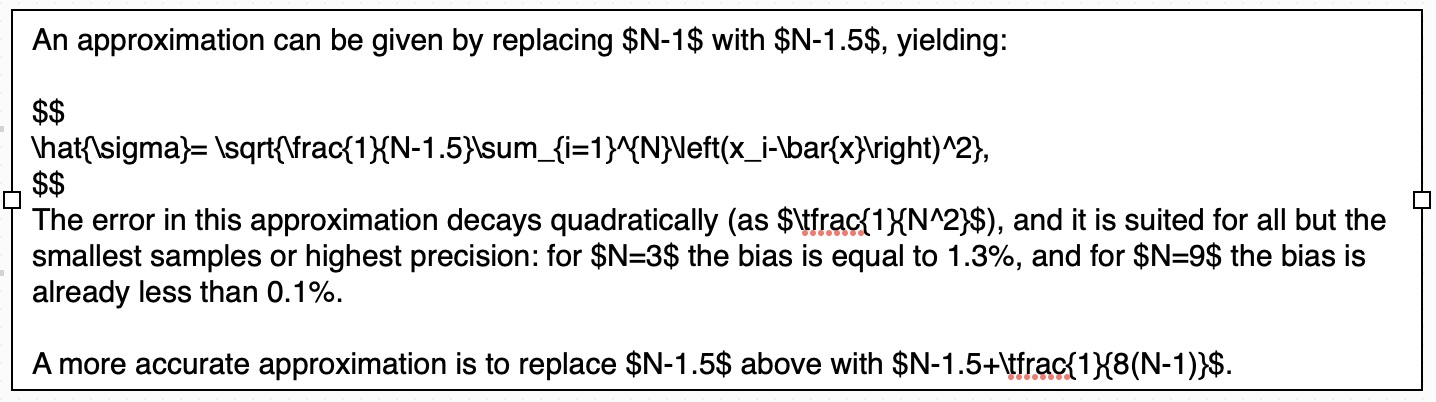
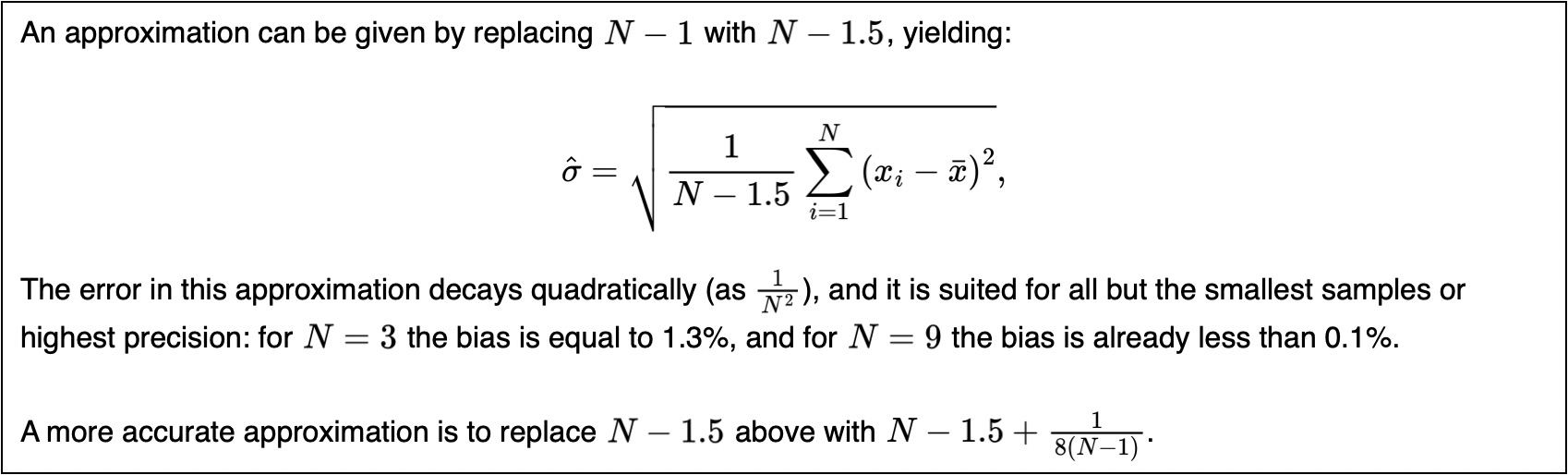
One of our most popular requests is finally here! You can now enter math equations directly into Curio's markdown text figures! Block equations ($$⏎...⏎$$), inline equations (\(...\), $...$), and math code blocks (```math⏎...⏎```) are all supported.
Equation font sizing based on the figure's body font is automatically considered (and can be overridden). For inline equations, accurate baseline calculations directly from the renderer are used to precisely line up equations with neighboring text. If you select the figure then change its font size, thus the markdown body font size, then equations will automatically scale and adjust accordingly without needing to re-render.
By default the MathJax v3 JavaScript is loaded via CDN but can be locally hosted for offline rendering. Several packages are now included such as color for coloring equation text, mhchem for chemical equations, and physics for additional symbols.
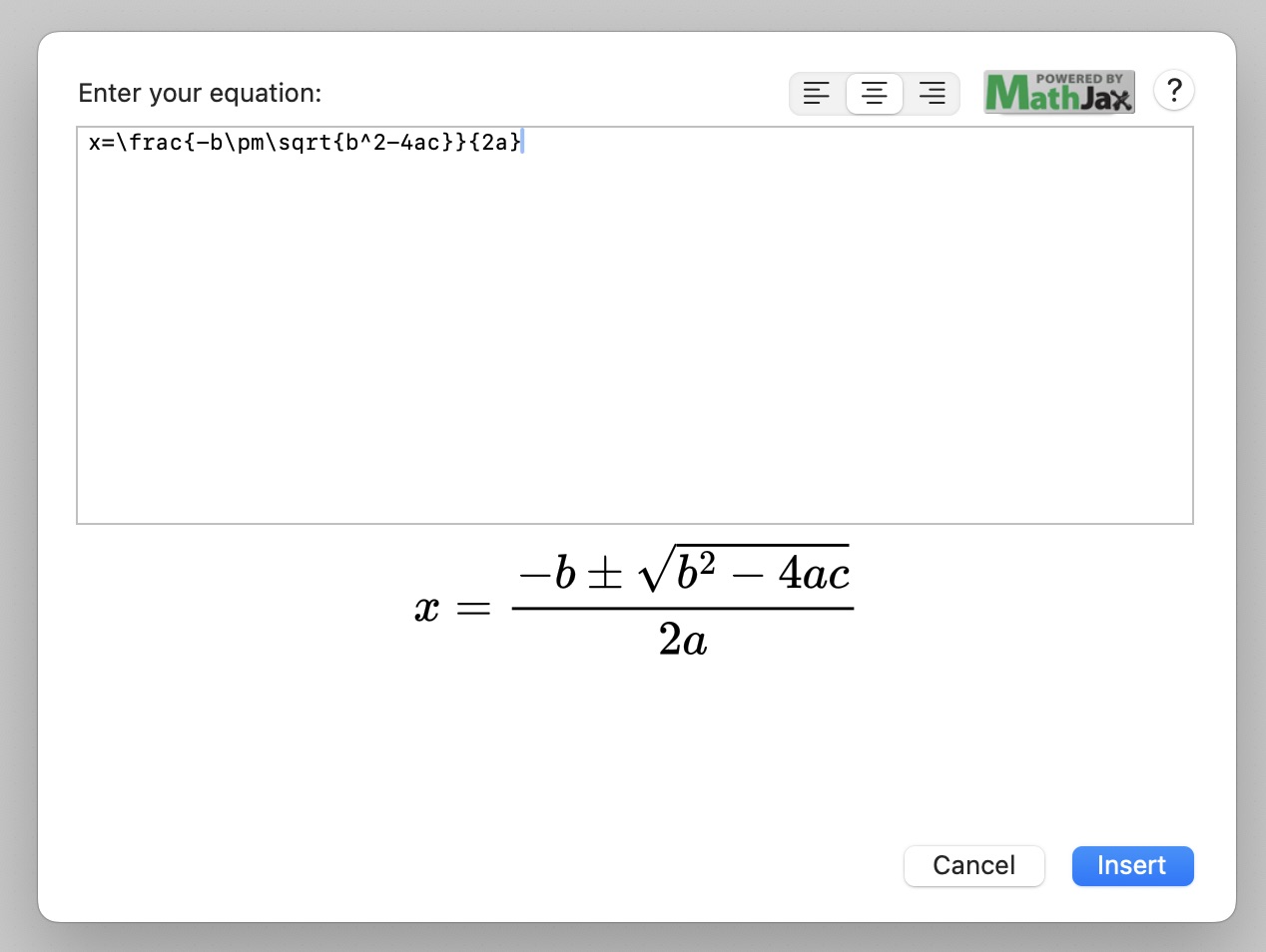
Plus you can use the Equation Editor and its handy preview to insert and edit equations in raw LaTeX syntax in markdown text figures! To edit just put the cursor somewhere in the LaTeX equation and press the ⌃⌘E Equation Editor shortcut.
Tons of details are in the docs including how Curio can use hidden equation meta, how to configure offline resources, customization details, how fonts work, and advanced overrides.
1️⃣ Here's a text figure in Curio containing markdown inline and block equations:
2️⃣ As rendered:
Equation Editor
The Insert > Equation editor with live preview has been completely rewritten to use our new MathJax subsystem. This means MathJax v3 (up from v2), additional bundled packages like mhchem and physics, support for offline rendering, accurate baseline calculations directly from the renderer, and no workarounds necessary to handle a mix of Retina and non-Retina monitors.
The equation editor can be used to insert a standalone equation image figure on the idea space, or a block or inline equation image inside a non-markdown rich text figure, which is very handy for those who don't use markdown. Plus the equation editor supports LaTeX, AsciiMath, and MathML.
And, as mentioned above, you can now use the Equation Editor and its handy preview to create and edit your raw LaTeX equations within your markdown text.
Mermaid Figures
Curio Pro now supports Mermaid, a popular and extensible diagramming format! You can drag in Mermaid files or Paste As > Mermaid Diagram to instantly see a rendered diagram. The generated PDF image has a transparent background and will resize, zoom, and print perfectly.
Double-click the diagram to edit the source and the resulting image is quickly refreshed when you switch back to Curio.
Mermaid diagrams can be created with both ChatGPT and Claude by asking for a Mermaid diagram of a specified process flow.
Here's an idea space with a bunch of dropped or pasted Mermaid diagrams:
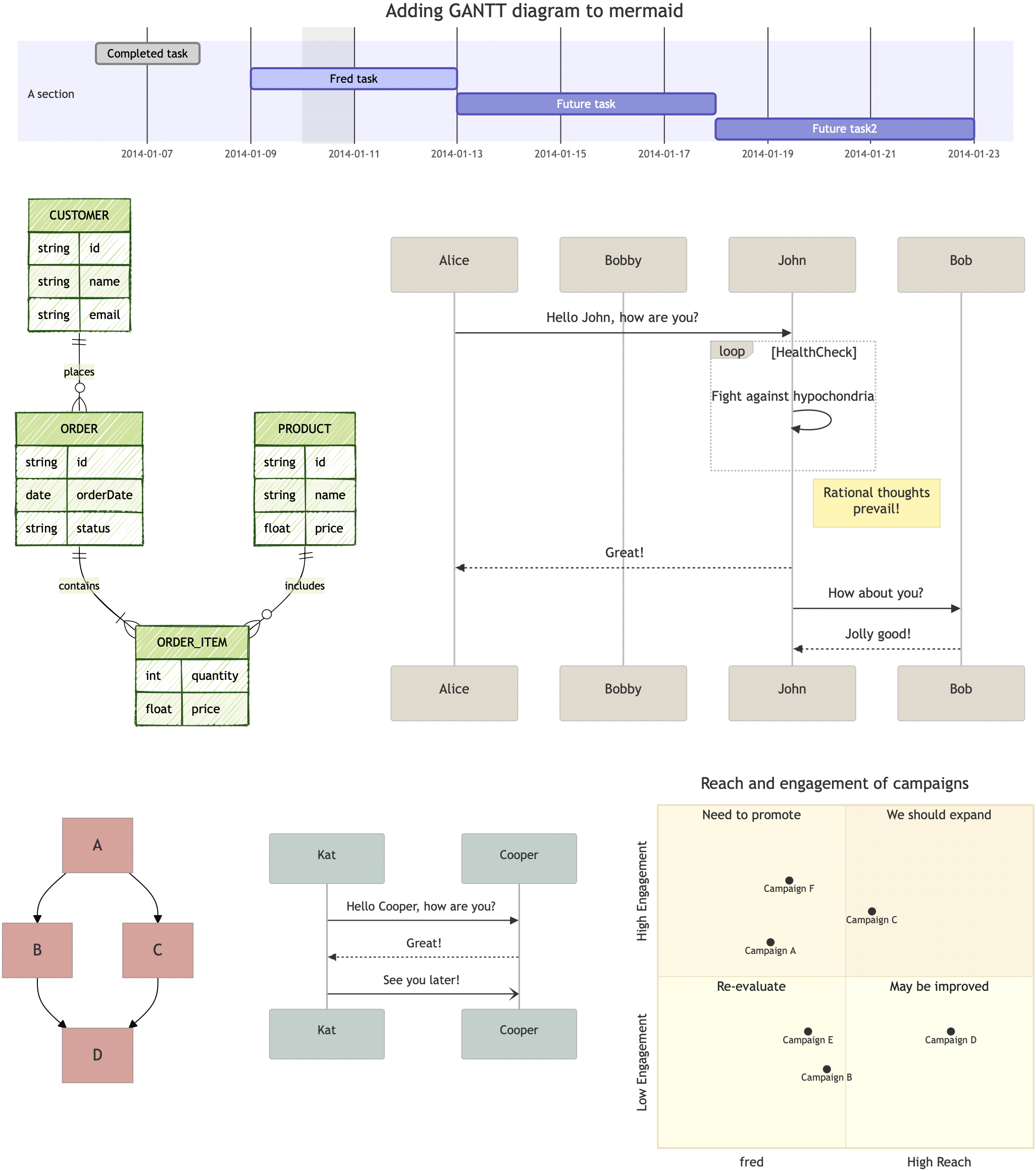
Most Mermaid diagrams size themselves to a natural size although some, like the Gantt chart, can position elements based on a specified width. To better support those types of diagrams you can right-click and choose Render Using Width as Max and Curio will re-render the diagram using the figure's width as the max.
1️⃣ Initial diagram:

2️⃣ Simply resizing the generated PDF scales everything inside, including fonts:

3️⃣ Render Using Width as Max gives the diagram more room to position elements like Completed task:

Mermaid Markdown Code Blocks
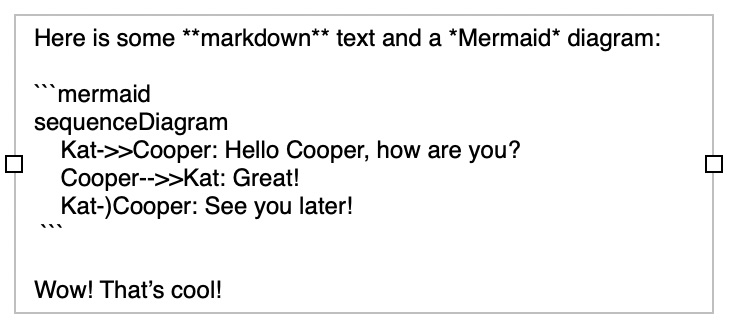
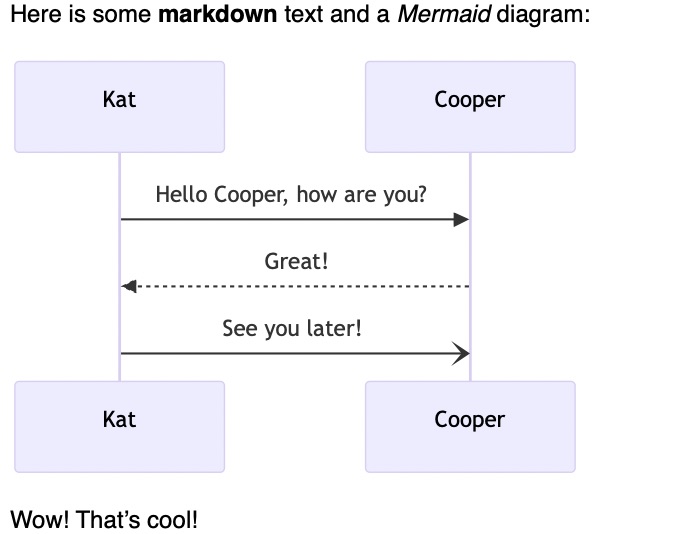
Curio Pro expands its markdown support with the ability to render Mermaid code blocks! You can construct your Mermaid code block with either backticks (```mermaid⏎...⏎```) or tildes (~~~mermaid⏎...⏎~~~).
1️⃣ Here's a text figure in Curio containing a markdown Mermaid code block:
2️⃣ As rendered:
Mermaid Organizer Documents
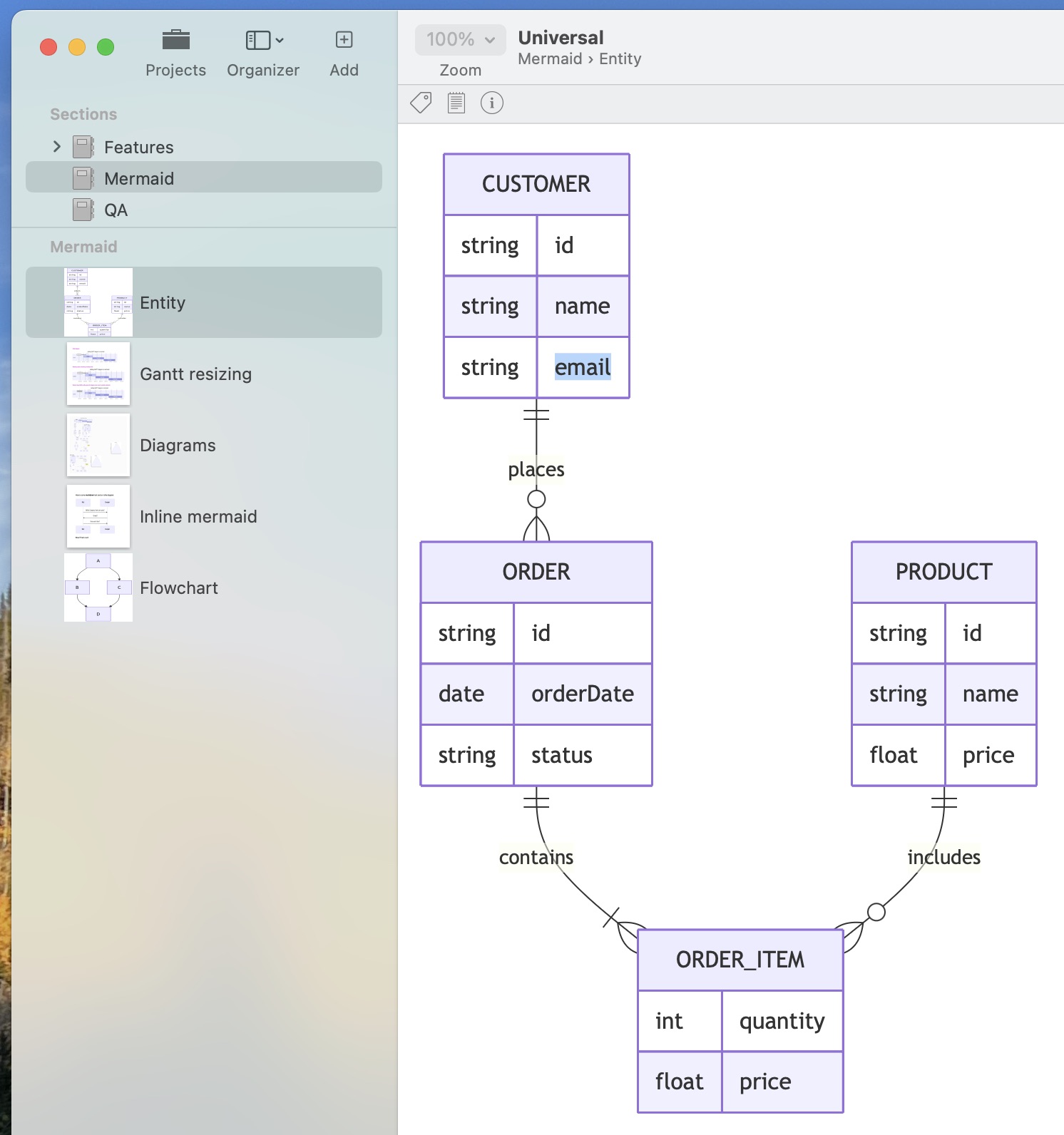
Curio Pro also supports Mermaid files in the Organizer!
These are dynamically rendered within a live web view which fills the entire Curio content area. A thumbnail for the Organizer is also automatically generated.
Markdown Language Code Blocks
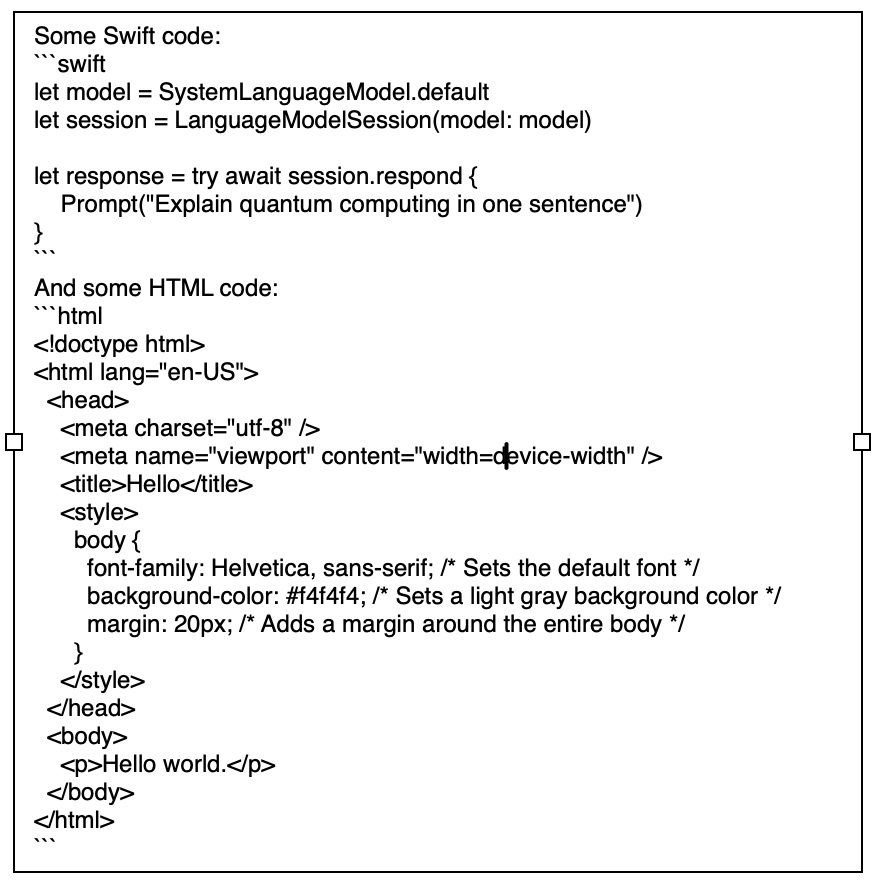
Curio Pro now supports language-specific syntax coloring within ```language⏎...⏎``` or ~~~language⏎...⏎~~~ code blocks, where language is the language of your code block. Curio uses the popular Highlight library for syntax coloring.
There are oodles of options to fine-tune and if you use global or project-specific master markdown styles you can even specify a different theme per-language such as one for ```swift and another for ```css.
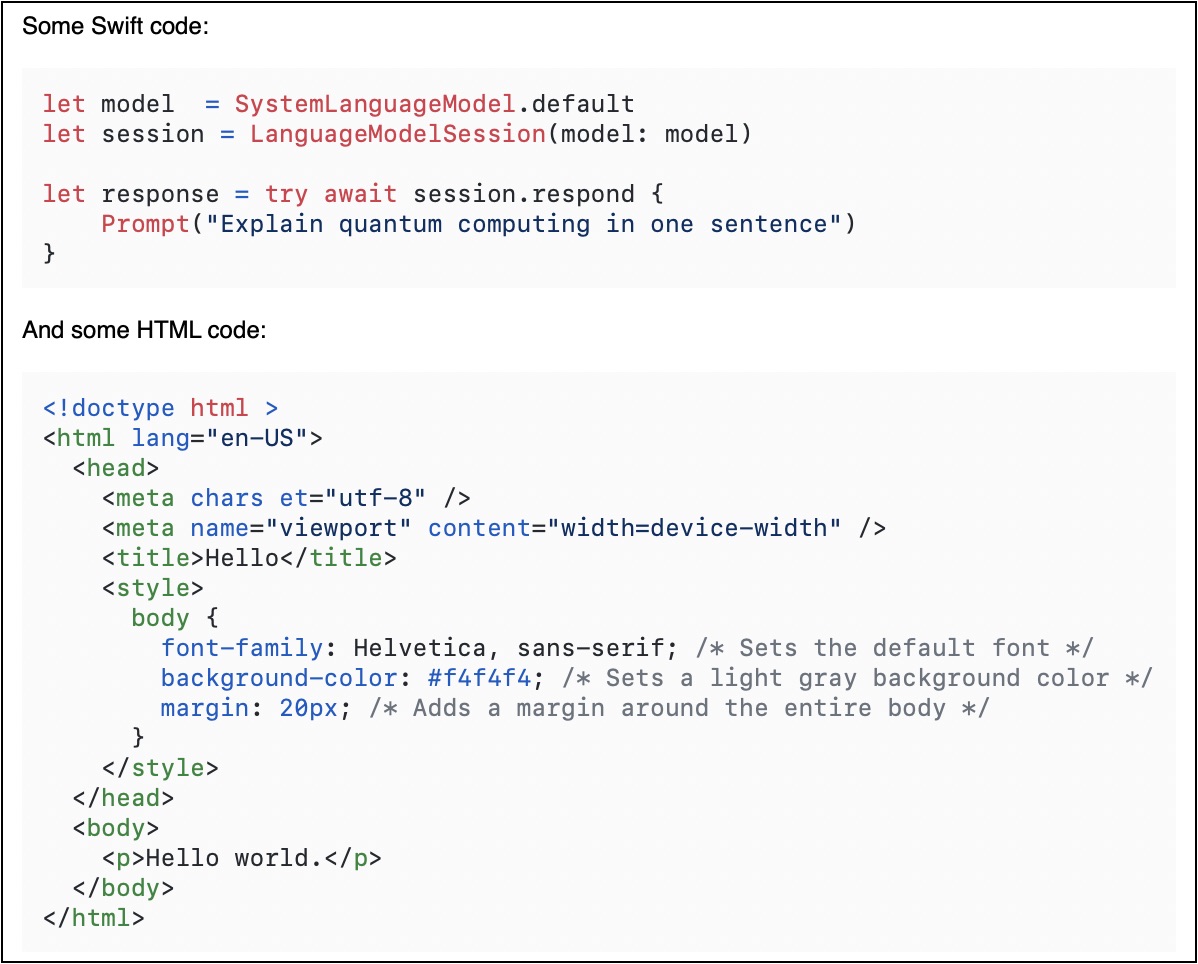
1️⃣ Here's a text figure in Curio containing Swift and HTML code blocks:
2️⃣ As rendered:
Markdown Horizontal Rules
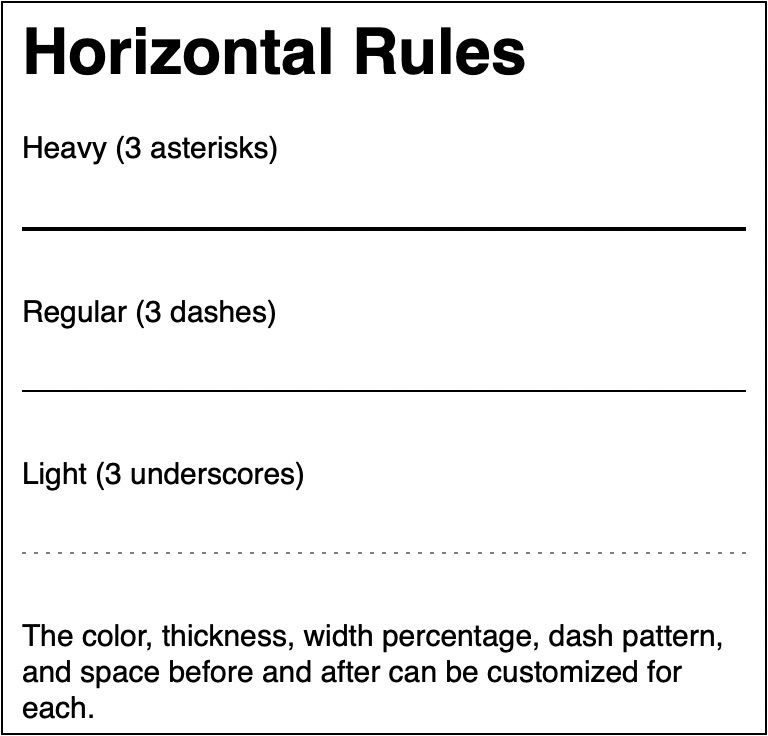
Curio now supports markdown horizontal rules via the CommonMark-standard ***, ---, or ___ syntax.
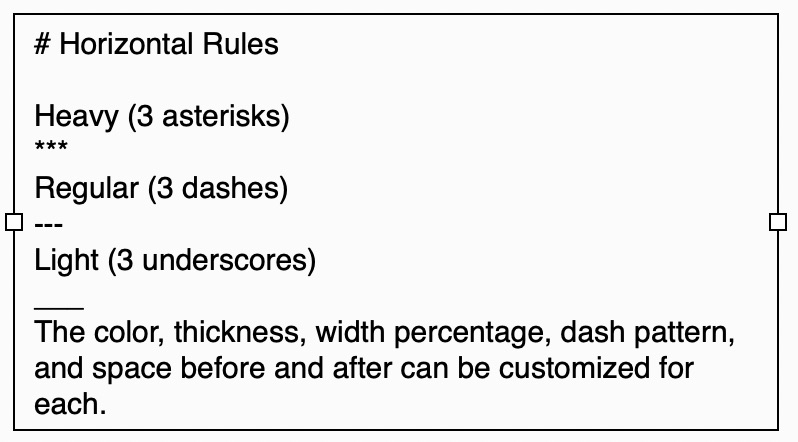
In fact, we've kicked this up a notch so that *** will draw a strong line, --- a regular line, and ___ a thin, dotted line. The color, thickness, width percentage, dash pattern, and space before and after can be customized for each.
1️⃣ Here's a text figure in Curio containing the three standard markdown horizontal rules:
2️⃣ As rendered:
Markdown Block Quotes and Callouts
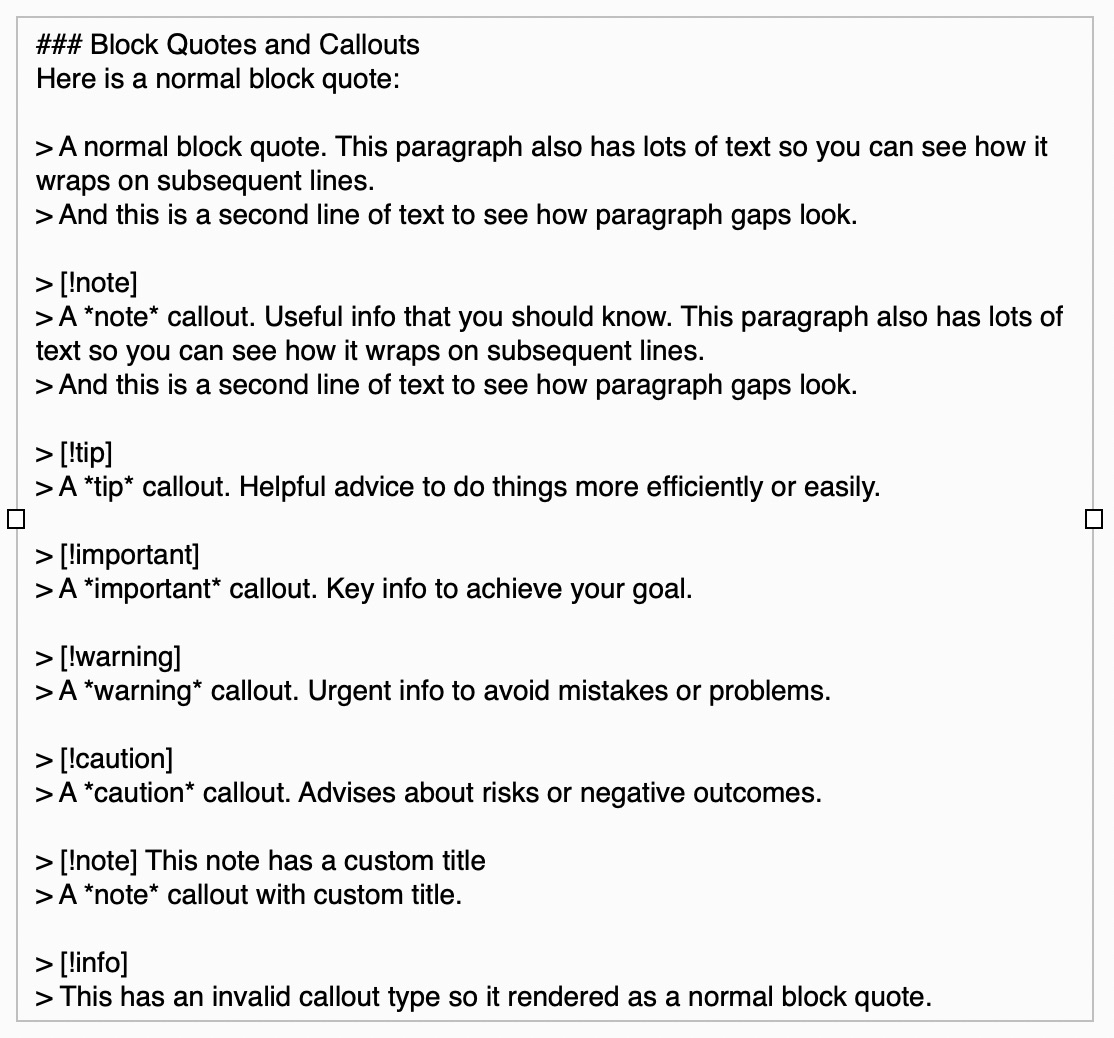
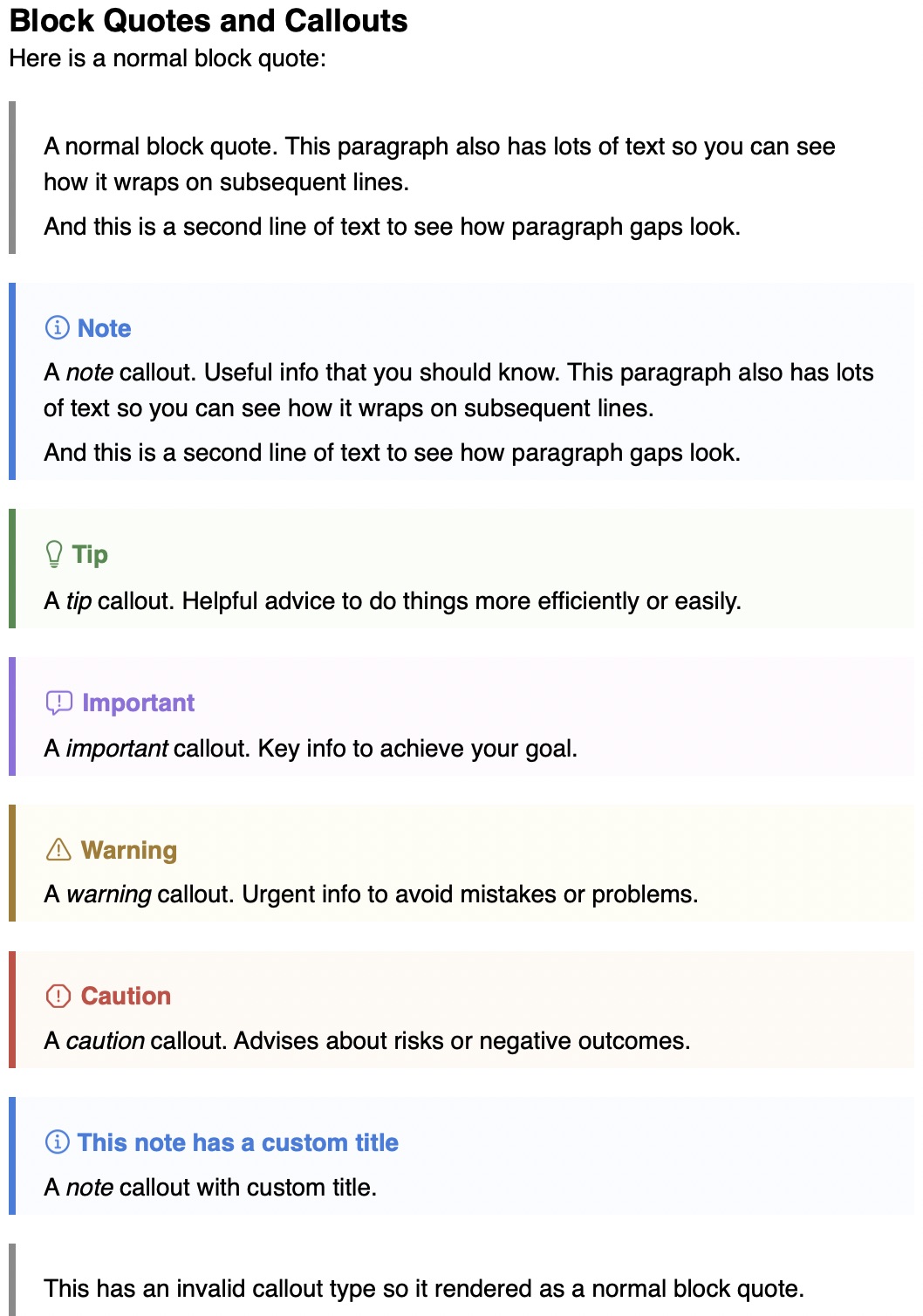
Markdown block quotes now support callouts! Plus they have been significantly enhanced with support for padding, border, and inserted blank lines before/after the block.
Font, color, border, and padding properties for block quotes and the callout types can be extensively customized.
1️⃣ Here's a text figure in Curio containing a block quote plus the five standard callout types:
2️⃣ As rendered:
Volume License Seat Support 👥
A volume license—such as one purchased for a 10-person department—can now be divided into individual seat activation keys, one per user. Each seat automatically inherits the volume license’s free-updates end date, so renewing the volume license keeps all associated seats current without any additional steps.
Improvements
Smarter Importing
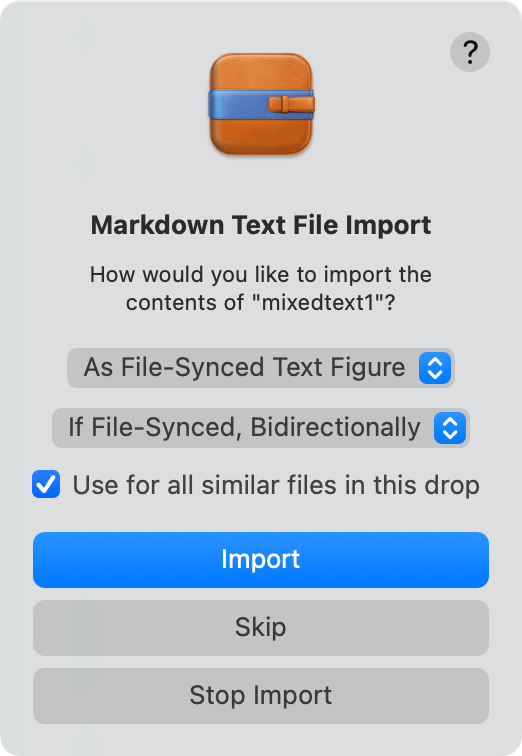
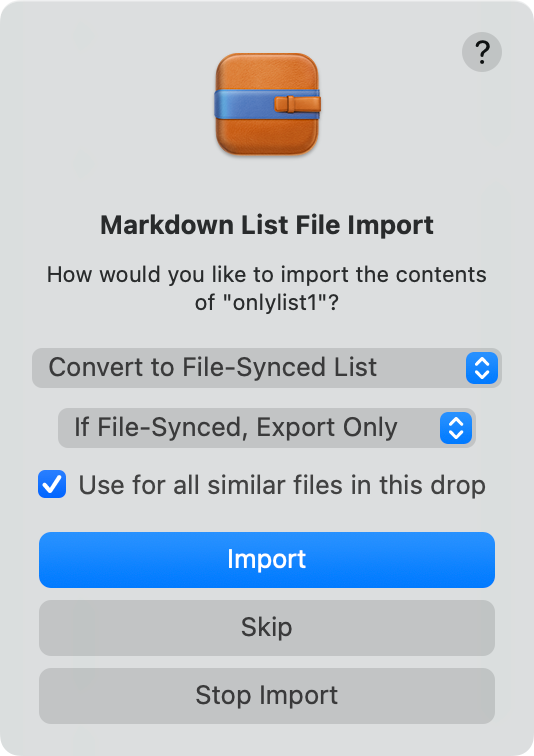
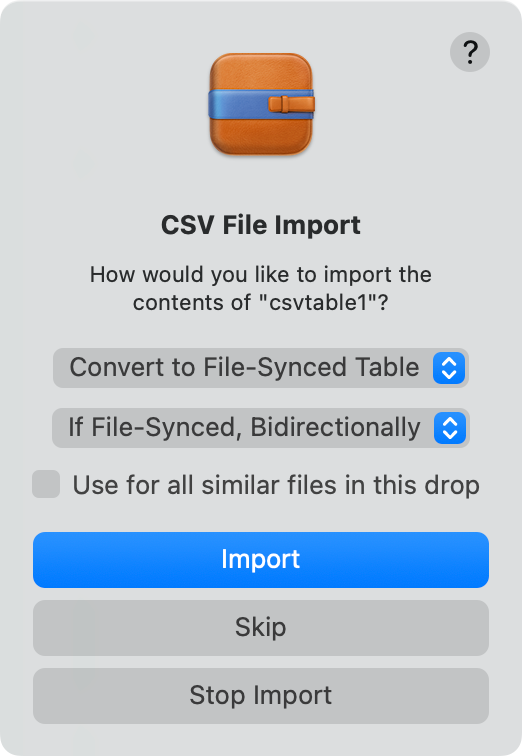
Major rewrite of import code to classify groups of similar dropped files so we can support a use for all similar files in this drop checkbox. If Option held when dropping, indicating aliases to files, then you can also choose the file-sync direction (bidirectional, export only, import only).
Relatedly, the status bar will now indicate if a figure you're hovering over syncs with a file.
Here we've dropped several files including mixed markdown text, markdown list-only files, and csv files.
Select Options
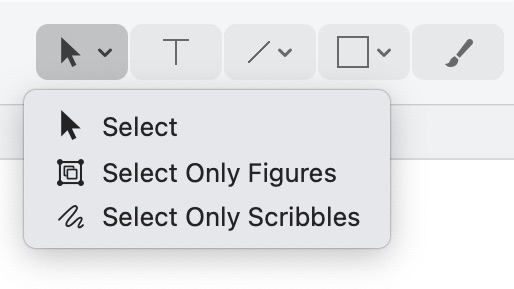
It's now much easier to select only figures or only scribbles. Just click and hold on the select tool to choose a specific option. No more magic modifier key incantations.
Glow Options
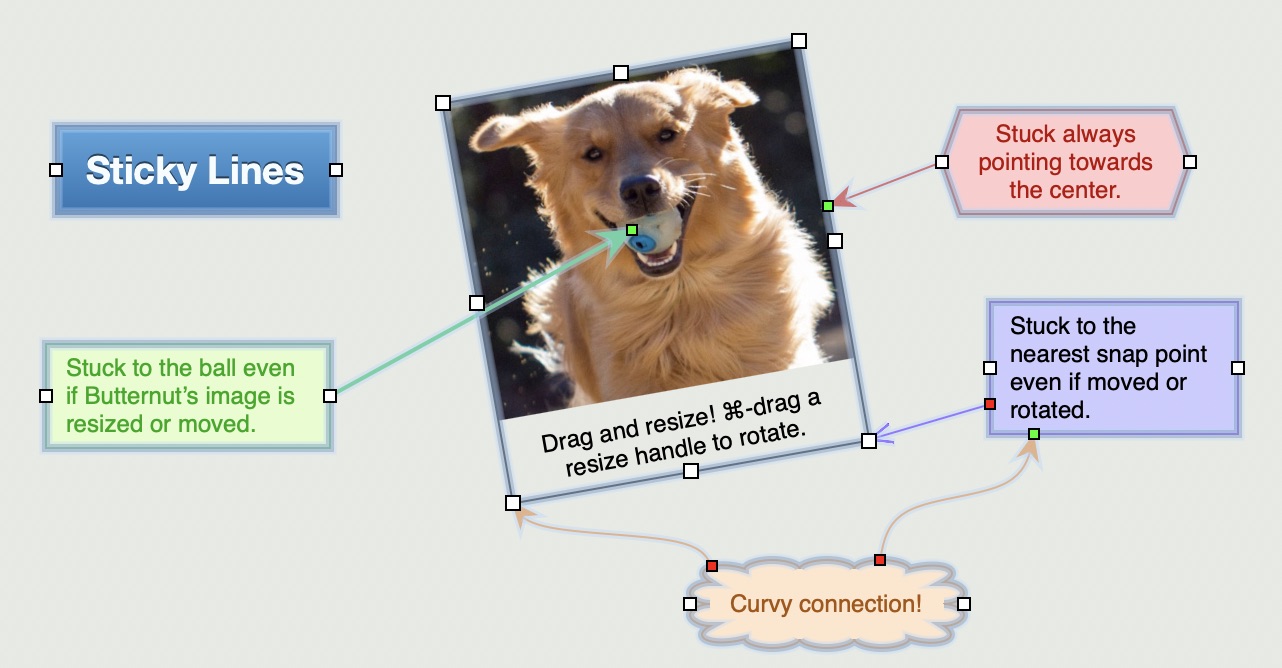
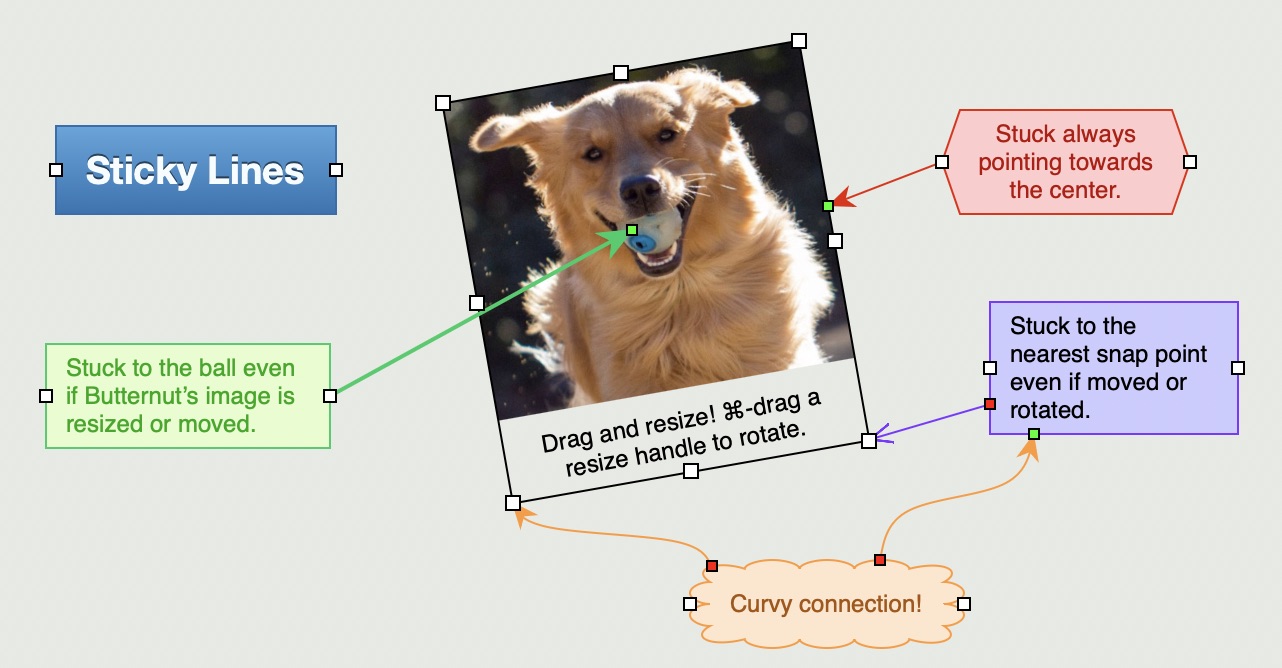
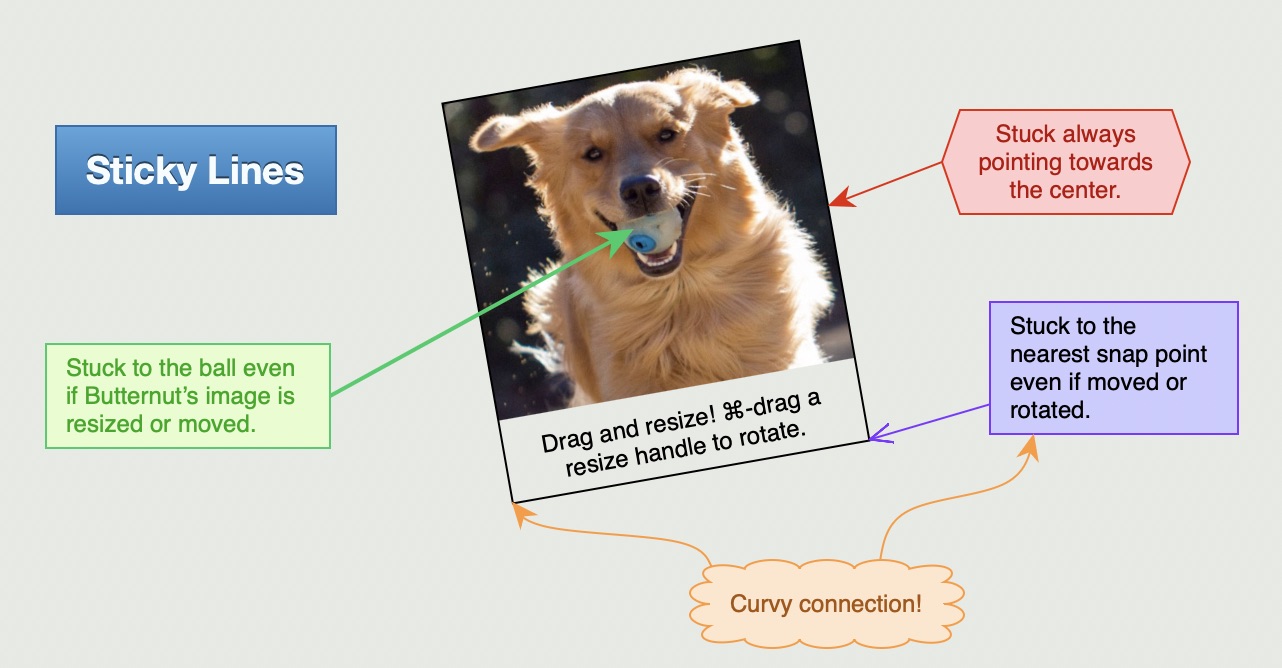
Sometimes it's hard to tweak your figure borders and colors and make minor positioning adjustments when selection glows and grab handles are in the way. Now you can tap W to toggle off glow and ⇧W to toggle off handles making it easier to see what you're doing while the figures remain selected. Tap the keys again to toggle them back on. These are temporary overrides just for the current idea space viewing.
1️⃣ Normal selection glows and grab handles:
1️⃣ Tapped the W key so glows are off but and grab handles are still visible:
1️⃣ Tapped ⇧W so now both are off, but remember the figures are still selected:
Async URL Figure Meta and Previews
When dragging an URL into Curio all website meta data, including icon and preview images, are now loaded asynchronously (in the background) using a hybrid of Apple's native LinkPresentation framework plus a custom website OpenGraph description parser, instead of synchronously retrieving and parsing all meta info using custom code. If you've enabled URL figure previews via Format > Default Figure Settings > By Default Show URL As Preview then a normal link figure is shown until the loaded meta info comes in then the figure refreshes with the preview.
In short this means no more pause when dragging in links; they are now placed instantly and will silently refresh a few seconds later.
More Improvements
- Status Shelf
The Status shelf and code related to the background retrieval of tasks in opened and unopened projects has been significantly refactored to make it much robust and prevent race conditions, potential deadlocks, and synchronization issues. - Better Backups
If you've enabled Curio's built-in automatic backups, Curio will now store a zipped version of your project, instead of a simple copy, in the specified Backups folder. This saves space, makes backups faster with cloud-synced backup folders, and backed-up projects won't be found by Spotlight meaning you won't accidentally open your backups instead of your real projects. The zipping happens asynchronously so won't slow project opening. - Window > New Window
When you choose Window > New Window, Curio will now store the current project and session state (Organizer selection, etc) before opening the new window so it appears in the same state. - Arrange > Lock Position
You are now able to add/remove/rearrange items within a collection/composition that has its position locked via Arrange > Lock Position. - Figure Auto Spacing
The auto spacing algorithm is now more robust for figures that have Resizes should move figures closely underneath checked in the Geometry inspector panel. - Smarter Project Link Resolution
The Project Mappings file (in Curio's app support folder) is now updated with the project ID → project URL mapping at every project open and save. This means curio:// links, which contain project ID's, will automatically work without resorting to an internal Spotlight search or asking the user to locate the project. - Markdown Code Blocks Enhancements
Like the new language code blocks, regular code blocks now support padding, border, and inserted blank lines before/after the block. - Markdown Code Blocks with Tildes
You can now use 3 tildes as an alternative to 3 backticks for a code block. This brings Curio into compliance with CommonMark and is easier to type than backticks on certain international keyboards. - Markdown Master Style Font Sizes
For your master markdown styles you can now specify afont-sizewith apxsuffix to indicate pixel units like16px, as opposed to standard points (where 12pt=16px), or with a%suffix like85%which specifies a font size as a percentage of the default or body font size. The latter is handy if you want your language code block to be a tad smaller than surrounding body text, like Github's 85% or ChatGPT's 87.5%. - Markdown Master Style Padding/Border
Curio can now handle more advanced values for attributes likepaddingandborder-widthwhen used with markdown block quotes, code blocks, and language code blocks. Like their CSS counterparts you can now specify up to four numerics:padding:10= all four sidespadding:10 10= top/bottom, left/rightpadding:10 10 10= top, left/right, bottompadding:10 10 10 10= top, right, bottom, and left. - Markdown Master Changed
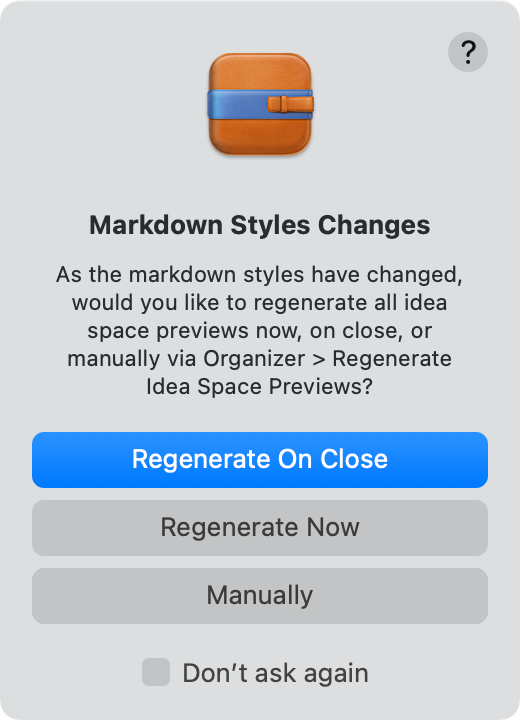
After making changes to the master markdown file Curio will ask if you want to re-render all your idea space previews when you close the project, or right now, or manually via the Organizer > Regenerate Idea Space Previews menu. Regardless of what you choose Curio will always make sure an idea space’s thumbnail and underlying preview are up to date when you select, export, or print the idea space.
- Print Markdown Figures As Text
When you select a markdown figure containing a list and choose Share > Print Selected Figure As Text, the lists will now neatly wrap according to their indentions. - Export As Markdown Into Separate Files
When you select multiple figures and choose to Share > Export As > Markdown you will see a new Export figures as separate markdown files checkbox. When checked instead of going into a single markdown file each figure will export into its own sequentially numbered markdown file. - Color Specifications
Colors specified in your Curio settings or Master Markdown Styles have long supported syntax like#ff0000andrgb(255, 0, 0)andrgb(255, 0, 0, 0.35), and has now been extended with more accepted syntax such asrgb(255, 0, 0, 35%),rgb(255 0 0 / 35%),rgb(100% 0% 0%),rgb(100% 0 0 / .35),rgb(100% 0 0 / 35%)for those more familiar with those CSS rgb syntax formats. - Video Poster Artwork
For video files, if no poster frame or start frame is specified by the user then Curio will try to find an embedded poster art in the video's meta data and use that. If it can't find anything then it defaults to the first frame of the video. - Remove Instant Document
The Insert > Instant Document > Remove Instant Document item is now a submenu so you can immediately remove a user-added instant document (instead of showing the internal app support folder which was flakey on Curio for Mac App Store). - Project Library Thumbnails
The rendering of project library thumbnails is now smarter: either a low-level image thumbnail request for images or a Quick Look thumbnail request for other file types. Either case is completely asynchronous and controlled so a large library doesn't swamp the system with thumbnail requests. One convenient side effect is thumbnails for PDF's now show annotations such as highlight coloring. Plus there's a new right-click Refresh Thumbnail to refresh its image. - Opening Projects With Same ID
The warning that appears if you open two projects with the same project ID, like if you duplicate a project, is now smarter. - URL Detection
When importing files as lists or tables, when creating individual figures within that collection Curio now detects non-website URLs likecurio:///blahand imports them as link figures.
Fixes
- Improved Idea Space Internal Filenames
Fixed a rare issue where renaming idea spaces with long titles (≥ ~20 characters) containing accented letters or emoji could result in slightly different internal filenames, leaving behind duplicate files for the same asset. Curio now always keeps the newest version and automatically archives any older duplicates. - Right-Down Mind Map
Fixed the right-down mind map arrangement so when you collapse nodes the map shrinks appropriately. - Synced Figure Note CPU Issue
Fixed issue where syncing figures with notes caused a CPU spike. - Collection Query Fields
Fixed issue where the Query field for list, mind map, stack didn't wrap contained text. Made the field a bit bigger too. And now right-clicking on query collection doesn't say List (Table of Contents). - Go To Today
When you click the Go To Today journal button it will jump to today's entry if it exists, or create a new with the default journal style/template if it exists, else will now show the gallery so you can select a style/template for your new entry. - Gallery Sheet Size
Now saving/restoring the gallery popup sheet sizes more reliably. That popup sheet appears if you right-click on a figure and choose Apply Style or click Go To Today and see the idea space style/template gallery. - Organizer Folder Rename
Fixed issue where Organizer new folder with selection was putting the idea space into rename mode instead of the folder. - Text Figures With Emoji
Fixed issues when bolding/unbolding selected text figures which contain emoji. - Embedded YouTube Videos
Fixed issue with embedded YouTube videos so they work again (and don't show a 153 error). Google is now requring aRefererHTTP header for embeds. - Drawing Link Figures
Fixed issue when copying/exporting figures with NSLinkAttributeName as PDF, PNG, or JPG that had resulted in bad clipping artifacts due to an Apple AppKit internal issue related to link drawing. - Broken Alias Icon [macOS Tahoe 26]
Fixed issue with broken alias icon on macOS Tahoe 26. - Markdown List Rendering Issues
Fixed a markdown issue with ordered lists followed by unordered lists, or vice versa, and a related issue to double-spaced list items having an extra space after the very last item. - Tag Set Reordering
Fixed wonky issues when rearranging tag sets in the meta inspector. - Mind Map / List Child Coloring
Fixed some issues with selecting a color palette from the mind map and list inspector and spreading those colors to child nodes. - Paste As Figure Instance
Fixed Paste As > Figure Instance so its use of the clipboard is more compatible with various clipboard managers. - Grid Snapping
Fixed grid snap issue with figures that have margins. - [33.0.1] Search Hang
Fixed a Search hang caused by markdown code block rendering (wasn't handling blank lines in code blocks). - [33.0.1] Search Performance
Fixed underlying performance issues that impacted search query speeds (and other operations) with several optimizations. - [33.0.1] List Item Resize Handles
Fixed list item text figures showing resize handles when they shouldn't. - [33.0.1] Index Card Widget
Fixed index card expand/collapse widgets getting clipped. - [33.0.1] Text Figure Embedded Images
Fixed embedded images within text figures so they abide by the figure's opacity setting and search dimming. - [33.0.2] Equation Rendering
Improved equation rendering and sizing checks and fixed clipping of standalone equation figures from the Equation Editor. - [33.0.2] Text Figure Min Height
Improved text figure minimum height handling after text editing (if the user has the text figure min height option enabled). - [33.0.2] Status Shelf Tag Refresh
Fixed Status shelf issue if a global tag was renamed so all tasks in open and unopened projects are refreshed correctly in the Status shelf. - [33.0.2] Status Shelf Live Export
Fixed a Status shelf Live Export issue where it wasn't exporting to the correct folder after the user set a different folder. - [33.0.2] Text Figure Line Height
Fixed issue applying a figure style's line height value to text figures. - [33.0.2] Markdown Safety Checks
Improved Markdown list/table safety checks and parsing around empty callouts, blocks, or YAML-only content. - [33.0.2] Search Results Export
Fixed Search results export, in either rich text or markdown, so links to idea spaces resolve correctly in Curio.
Technical
macOS Sonoma 14 Minimum
Curio now requires macOS Sonoma 14 as a minimum so new deprecations were cleaned up to better future-proof its codebase.

🚨 LinkBack Deprecated
LinkBack has been deprecated and is no longer supported by Curio. The 3rd party LinkBack code framework is 15 years old and relies on system calls that Apple deprecated way back in MacOS X 10.13 High Sierra.
🚨 Reminder: Evernote Deprecation Soon
As mentioned in the Curio 31 release notes, Curio's support for Evernote will cease very soon.
Evernote isn't nearly as popular as it was over a decade ago and the old API code that Curio's Evernote shelf uses to talk directly to the Evernote cloud has long had issues. Of course you can always use Evernote's native macOS app to copy notes into Curio.
More Technical
- Sparkle
For Curio distributed via our website, our app updating framework is now Sparkle 2.8.0 (up from 2.7.1). - RevenueCat
For Curio distributed via the Mac App Store, our subscription validation framework is now RevenueCat 4.44.1 (up from 4.43.3). - Classic Aliases
We have finally removed our old school alias support. Curio 7 and earlier used aliases to store linkages to files for asset aliases, project aliases, figure actions with file aliases, and jump target aliases.
This relied on the Alias Manager from the classic Mac OS that Apple ported into the initial release of Mac OS X in 2001. In Mac OS X Snow Leopard 10.6 Apple introduced security-scoped bookmarks as the modern replacement for aliases.
In Curio 8 we started encoding bookmarks and aliases. Then in Curio 14 we stopped encoding aliases entirely but still attempted to resolve them for pre-Curio 8 projects with no bookmarks. In macOS 11 Apple deprecated the method used for old alias resolution. And now with Curio 33 we've finally removed all old alias code out of Curio.
Don't worry, everyone still refers to these types of linkages as "aliases" as security-scoped bookmarks is pretty geeky.
- Recently Opened Projects
Curio now has a custom recently opened projects tracker to replace the problematic native technique.
On the initial run it will migrate file paths from the native system to fill it out (although you can turn off this migration if macOS hangs resolving them and begin with a blank slate). After that it will track projects as you open them, up to the System Settings specified max number.
We've seen that the native technique can hang when Curio requests the recently opened projects due to some under the hood synchronous queries it makes to resolve this list. This has resulted in odd hangs on Curio launch for some customers.
Our custom system is simple and won't attempt to auto-mount drives or auto-reconnect to servers so is virtually instantaneous. When it's done loading up its list it tells Status shelf to populate itself. The result is much more stable and robust with no risks of hangs and no need for magic delay times.
The File > Open Recent submenu is still managed by a related native system which fortunately doesn't have the same resolution pitfalls. And if you choose Clear Recents it will trigger the clear in Curio's new custom system as well.